Ora Overview
Tracker
Follow other wallets in real time, get notified when they trade, and watch their trades live.
The Tracker lets you follow any wallet and see its trades as they happen. You only use the wallet's public address: you watch it, you don't control it.
Open it with Tracker in the top navigation. It has two tabs: Wallet Manager, where you manage the wallets you follow, and Live Trades, where their trades show up. The chain selector at the left of the tabs, with the globe icon, picks the chains whose wallets and trades the Tracker shows.
Wallet manager
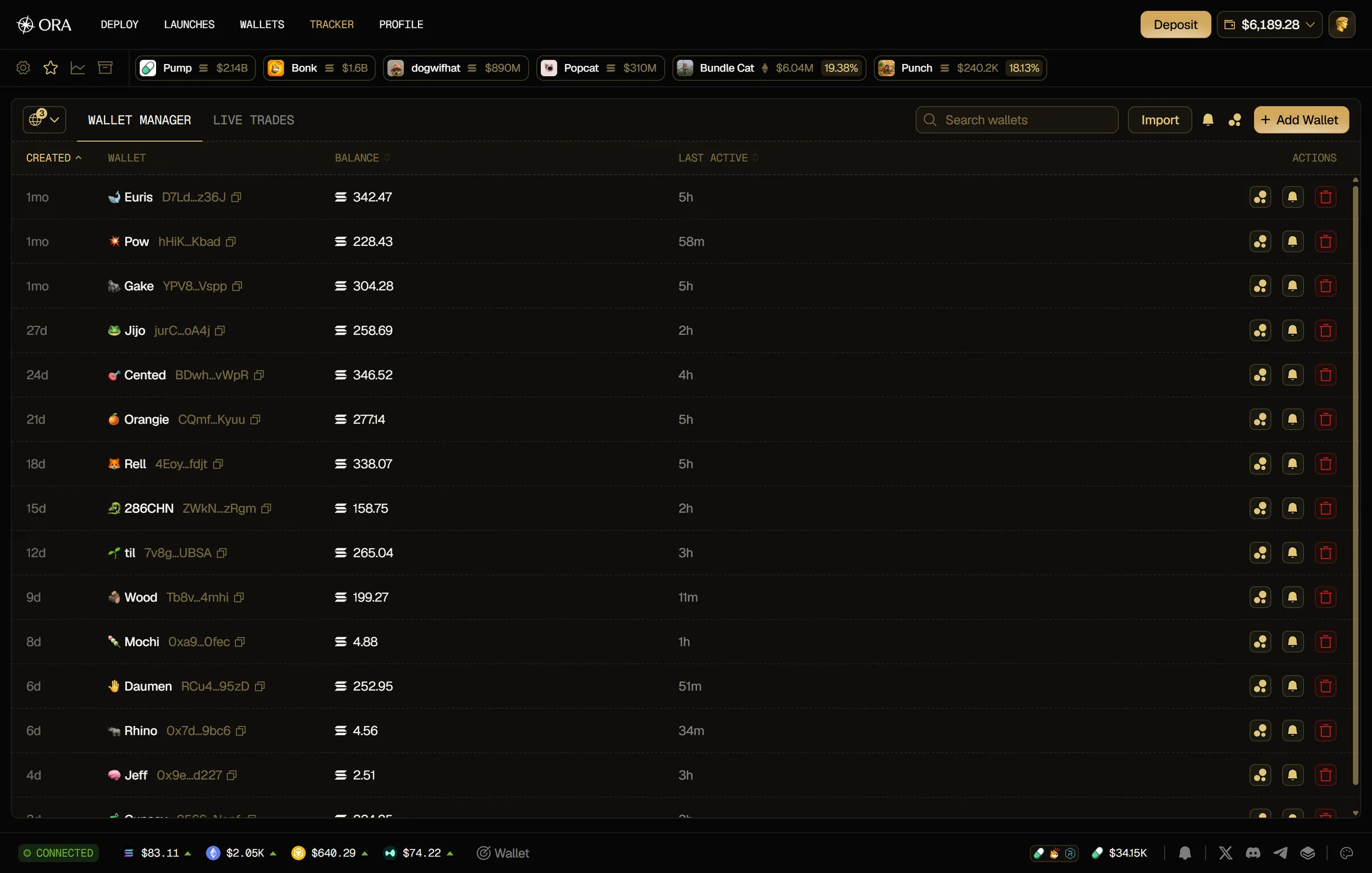
Section titled “Wallet manager”The Wallet Manager lists every wallet you track:
- Created: when you added the wallet.
- Wallet: its emoji, its name and its address.
- Balance: its SOL balance.
- Last Active: when it was last active.
- Actions: hide its chart bubbles, mute or delete the wallet.
Use Search wallets to find a wallet by name or address. Click the Created, Balance or Last Active header to sort the table.
Import wallets
Section titled “Import wallets”To follow many wallets at once, import them as a list:
- Click Import in the Wallet Manager.
- Paste your list in the Import wallets window.
- Fix any error shown under the field, then click Import.
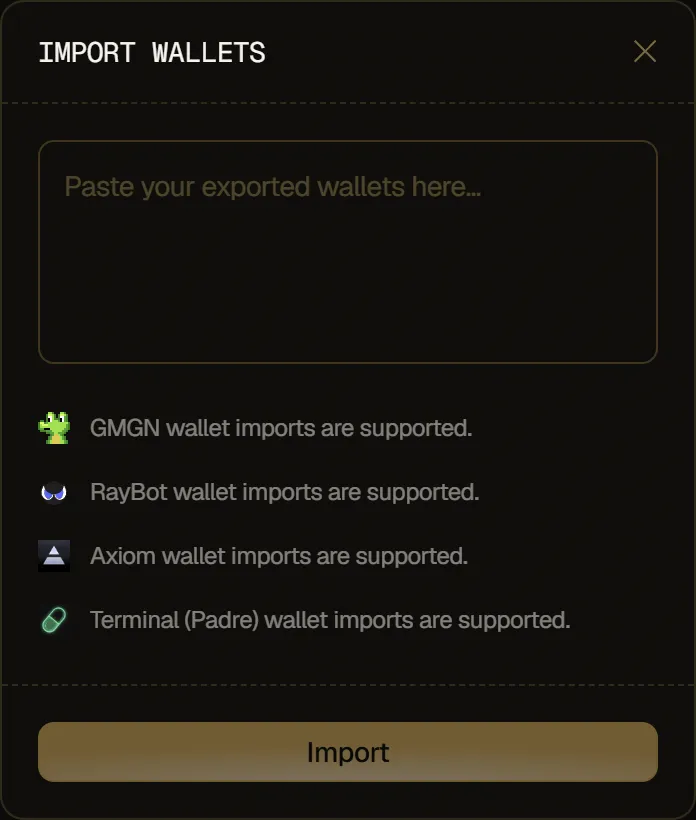
This import only uses public addresses: it never asks for private keys, and you follow these wallets without controlling them.
Format
Section titled “Format”Paste a JSON list where each wallet has three fields, all required:
- address: a Solana wallet address. EVM addresses aren't supported yet.
- emoji: the emoji's Unicode code, such as
1f680for 🚀. - name: the name shown in the Tracker, up to 50 characters.
[ { "address": "SOLANA_WALLET_ADDRESS", "emoji": "1f680", "name": "Whale 1" }, { "address": "ANOTHER_SOLANA_ADDRESS", "emoji": "1f40b", "name": "Whale 2" }]Limits
Section titled “Limits”- Up to 100 wallets per import, and 100 tracked wallets in total.
- The whole list must be valid: Import stays disabled until every row passes.
- Each address can appear only once in the list.
- An address you already track gets the new name and emoji, it isn't added twice.
- Other fields in the JSON are ignored.
Errors
Section titled “Errors”- Not valid JSON: the text can't be read as JSON. Check the brackets, quotes and commas.
- Row N: Not a valid Solana wallet address: the address on that row is wrong.
- Row N: EVM wallets aren't supported yet: the address on that row is an EVM address.
- Row N: Address is required: the address on that row is empty.
- Duplicate address in payload: the same address appears more than once.
Once the import is done, you get N wallets imported and the wallets show up in the Wallet Manager. If the import would take you past 100 tracked wallets, it's refused and nothing is added, with an error such as You can track at most 100 wallets.
Add a wallet
Section titled “Add a wallet”- Click Add Wallet in the top-right of the Wallet Manager.
- Paste the address in Wallet Address.
- Pick an emoji with the button next to the name field. The rocket is selected by default.
- Type a name in Wallet Name, up to 50 characters.
- Click Add Wallet.
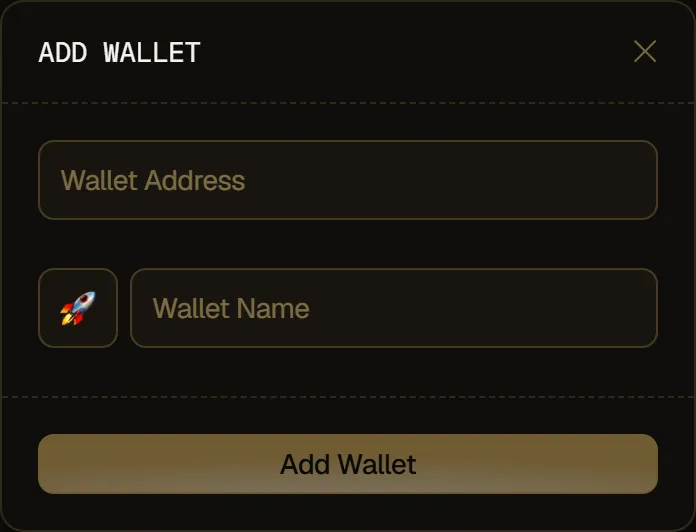
The Add Wallet button stays disabled until the address is valid and the wallet has a name. Under the address, you see Not a valid Solana wallet address if the address is wrong, or EVM wallets aren't supported yet for an EVM address.
Once the wallet is added, you get Wallet added to tracker. If you add an address you already track, Ora updates its name and emoji instead of adding it twice.
Manage tracked wallets
Section titled “Manage tracked wallets”- Mute a wallet: click the bell in its Actions column (Mute notifications). You stop getting notifications for its trades, but they still show up in Live Trades. Click it again to unmute.
- Mute all wallets: click the bell in the top bar of the Wallet Manager (Mute all notifications). This mutes every wallet you track at once, so no Tracker notification or sound plays. Click it again (Unmute all notifications) to unmute them all: it also turns Display notifications in Settings back on if it was off.
- Delete a wallet: click the red trash icon (Delete wallet). The wallet is removed right away, without confirmation, and you get Wallet removed from tracker.
Chart bubbles
Section titled “Chart bubbles”The trades of your tracked wallets show on the token chart as bubbles, with the wallet's emoji. The bubbles icons in the Wallet Manager choose which wallets show: Hide bubbles on a row hides the bubbles of that wallet, and Hide all bubbles in the top bar hides them for every tracked wallet. Click the icon again to show them (Show bubbles, Show all bubbles).
Live trades
Section titled “Live trades”The Live Trades tab shows the trades of all your tracked wallets in real time, newest first:
- Date: how long ago the trade happened.
- Name: the tracked wallet's emoji and name.
- Token: the token traded, with its logo and name.
- Amount: the size of the trade, in green for a buy and in red for a sell.
- MC: the token's market cap.
New trades appear at the top as they happen. Scroll down to load older ones.
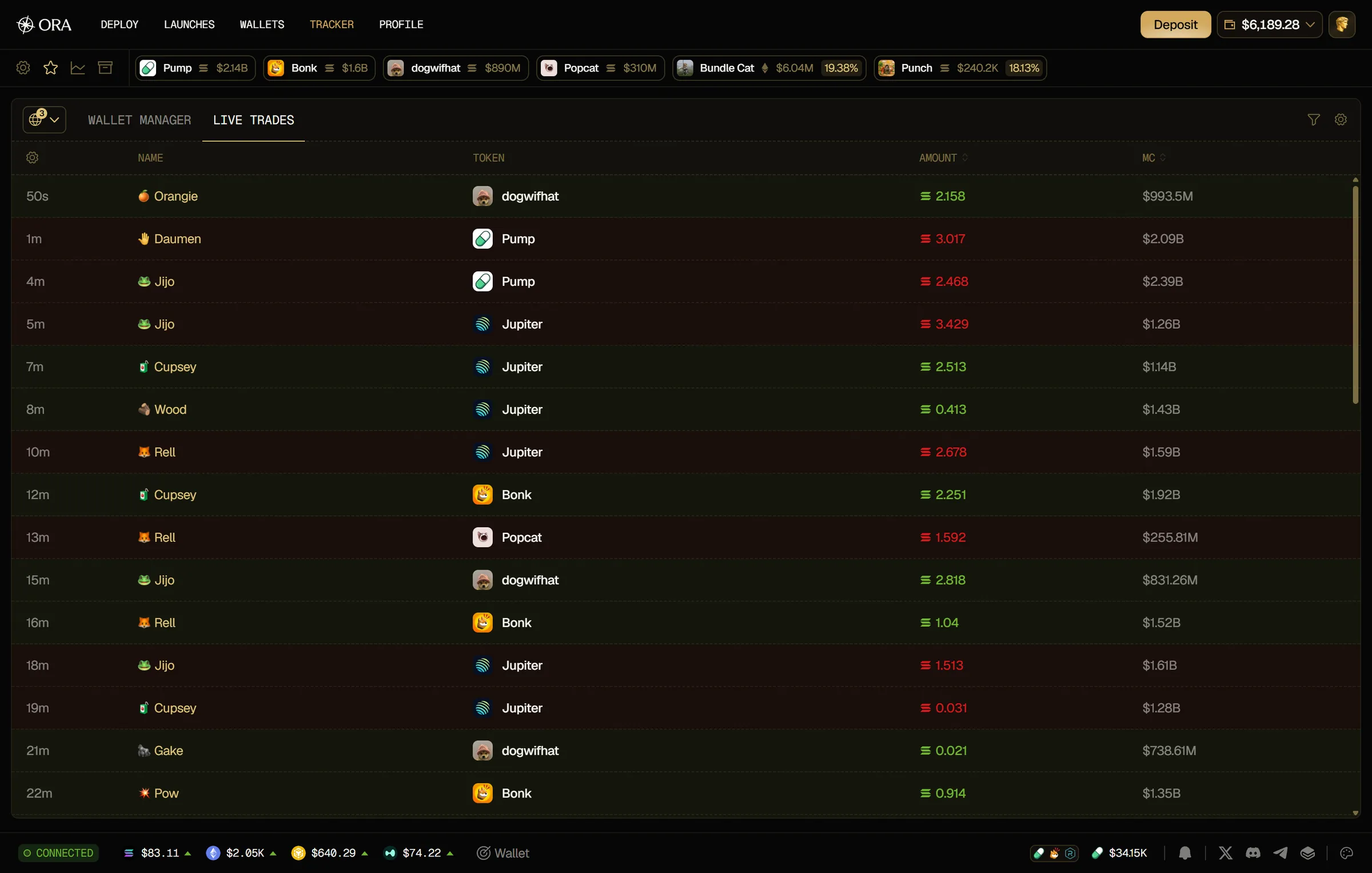
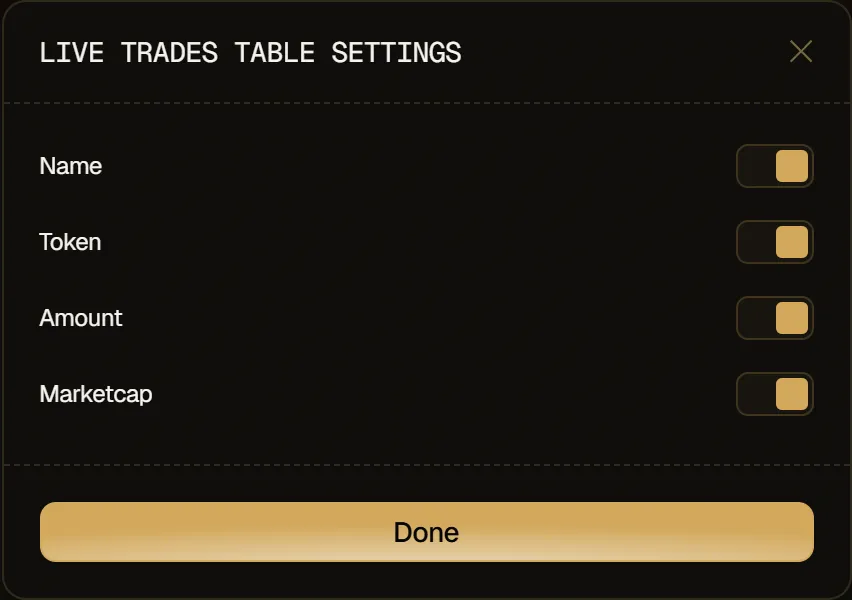
To choose which columns are shown, click the gear in the Date column header. The Live Trades Table Settings window lets you show or hide Name, Token, Amount and Marketcap.
Trade notifications
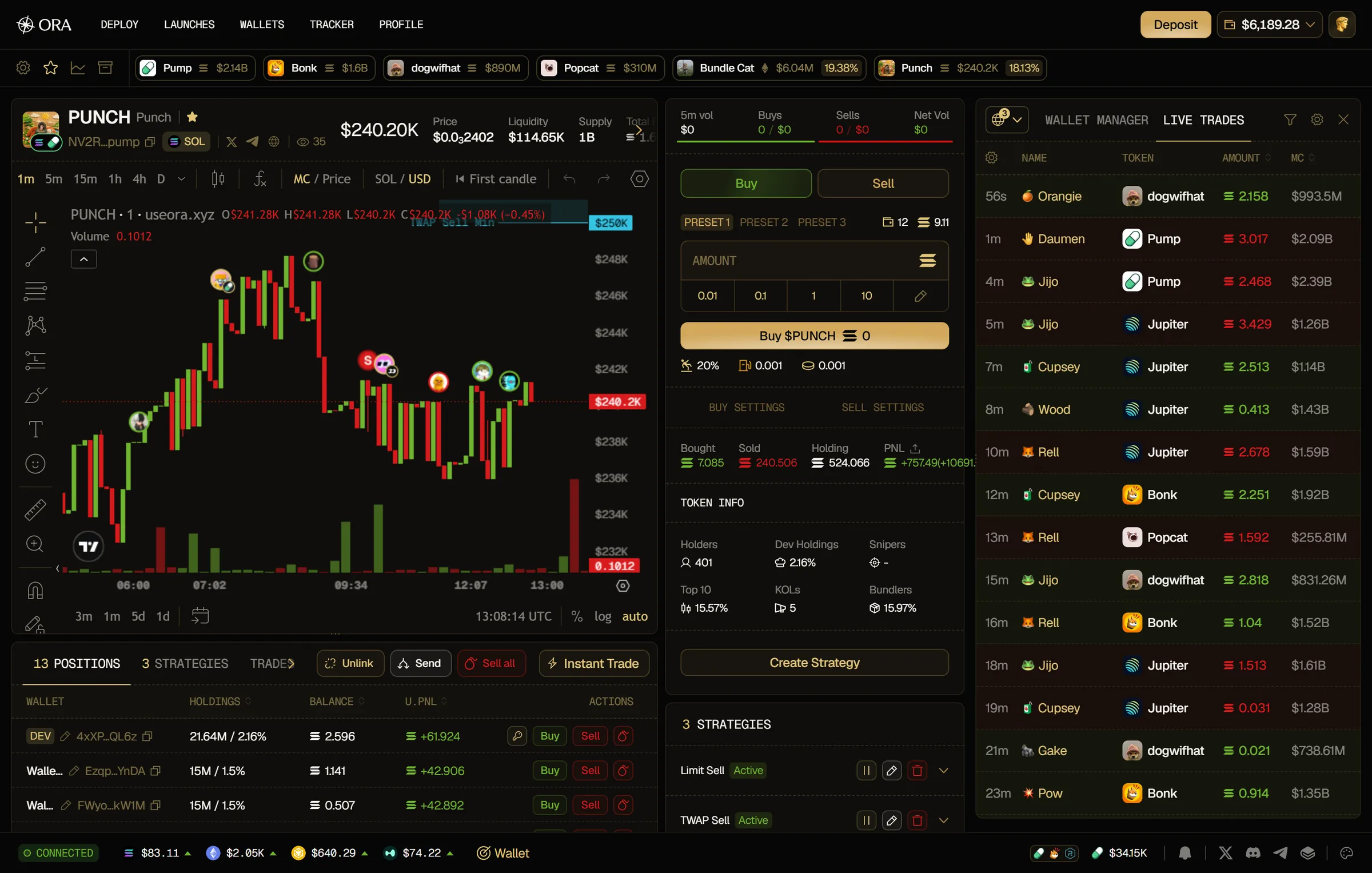
Section titled “Trade notifications”When a tracked wallet trades, Ora shows a notification with a sound, on any page of the app. Click it to open the token's page. On a phone-sized screen, only the sound plays: no notification is shown. Wallets you muted, and wallets on chains you unticked in the Tracker's chain selector, don't trigger any notification or sound.
You can also keep your Tracker open next to any page: click Wallet in the footer (Wallet Tracker) to dock it on the right side of the screen, and drag its edge to resize it. The docked panel shows on larger screens, and not on the Deploy, Tracker and Profile pages. Close it with the cross in its top-right corner.
Live trades filters
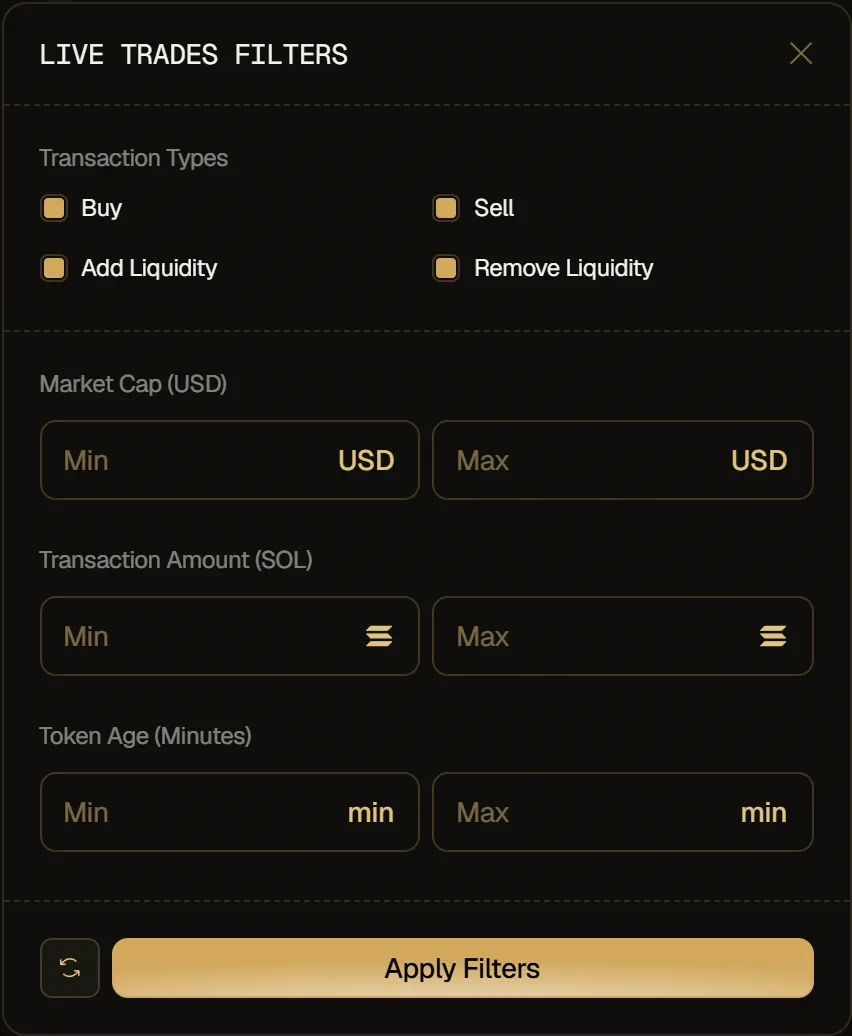
Section titled “Live trades filters”Click the filter icon in the top-right of the Live Trades tab to open Live trades filters:
- Transaction Types: Buy, Sell, Add Liquidity and Remove Liquidity.
- Market Cap (USD): a minimum and a maximum market cap.
- Transaction Amount (SOL): a minimum and a maximum trade size.
- Token Age (Minutes): a minimum and a maximum token age.
Click Apply Filters to save them and apply them to the Live Trades table. The reset icon puts the defaults back in the window, every type ticked and no limits: click Apply Filters afterwards to keep them.
With a Market Cap (USD) limit set, trades whose market cap is unknown are hidden. With a Transaction Amount (SOL) limit set, only trades made in SOL are shown.
Live trades settings
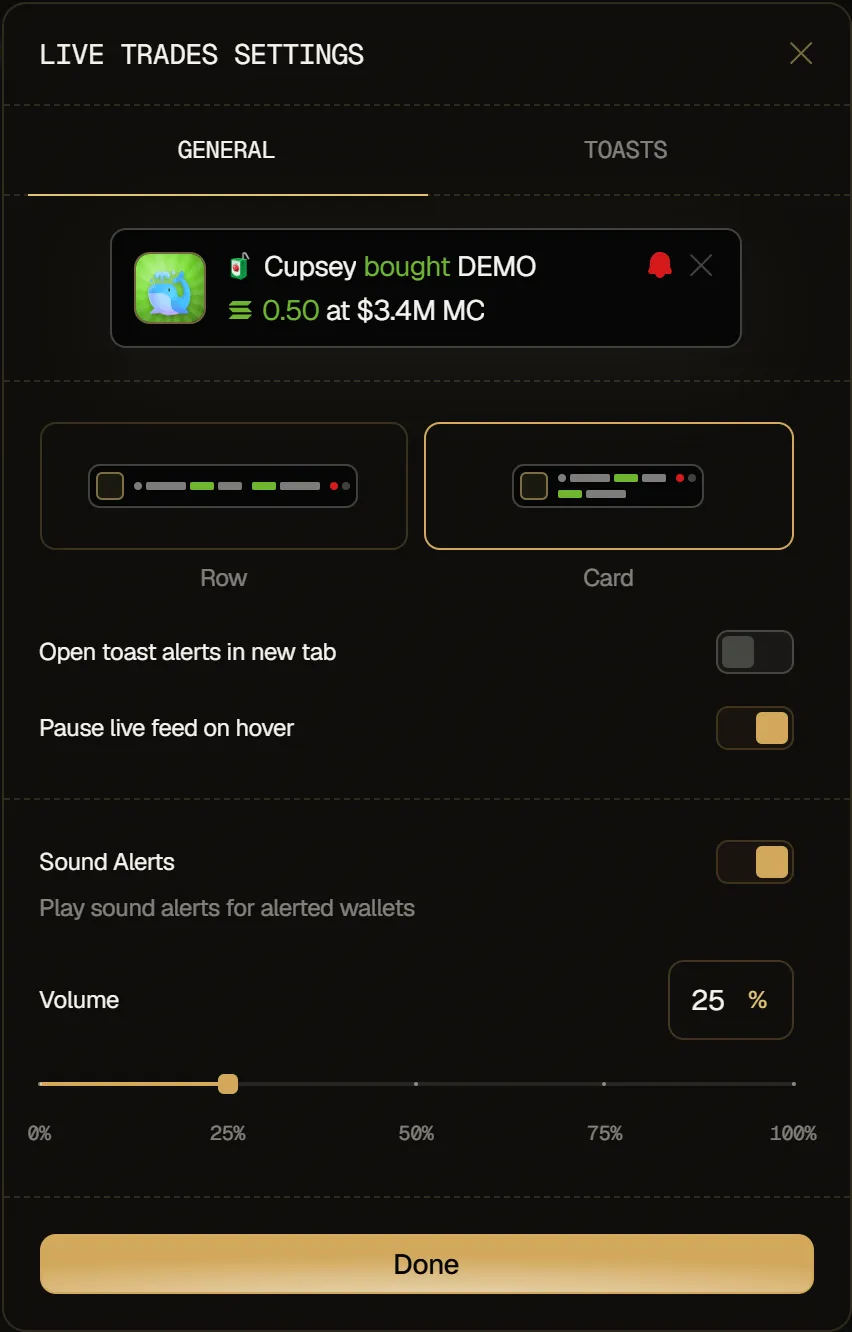
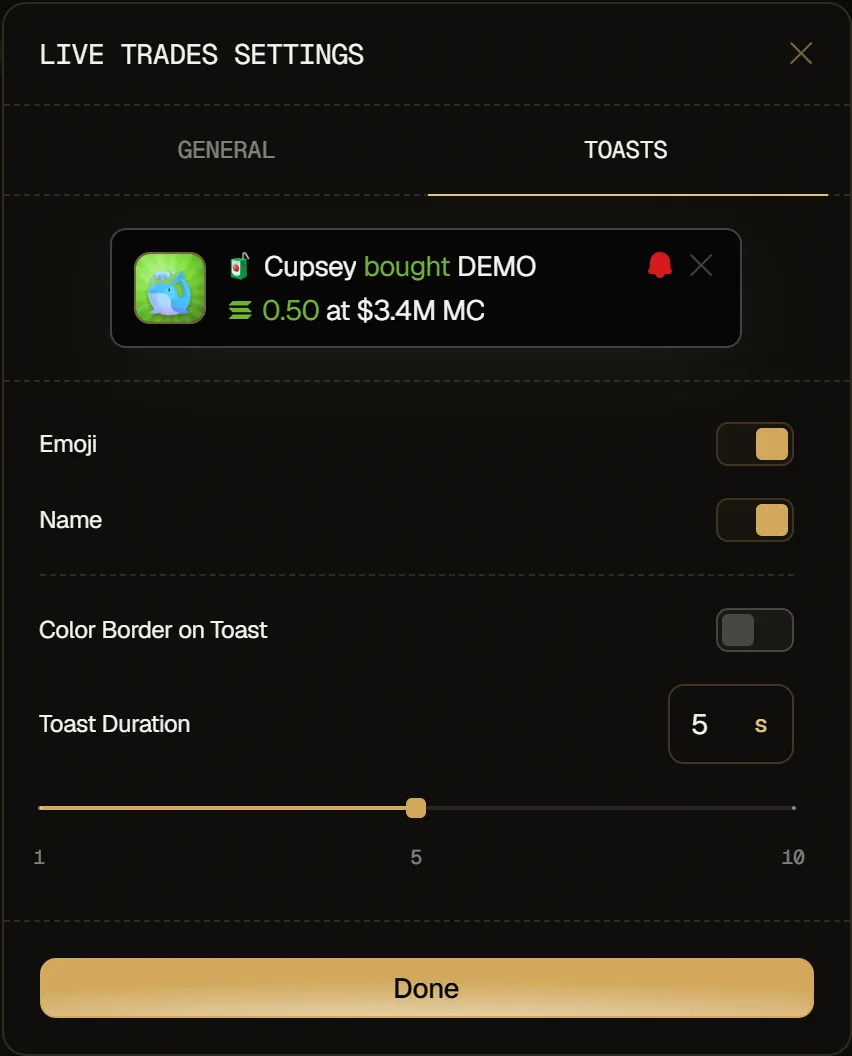
Section titled “Live trades settings”Click the gear in the top-right of the Live Trades tab to open Live Trades Settings. The preview at the top of the window shows a notification with your current choices. You find the same settings in the Tracker tab of Settings.
General
- Row or Card: the layout of your trade notifications.
- Open toast alerts in new tab: clicking a notification opens the token in a new browser tab.
- Pause live feed on hover: the Live Trades table stops moving while your cursor is over it, so you can click a row. New trades are kept and show up when you move away.
- Sound Alerts: play a sound for each notification, with its Volume from 0% to 100%.
Toasts
- Emoji and Name: show the wallet's emoji and name in the notification.
- Color Border on Toast: add a colored border to the notification.
- Toast Duration: how long a notification stays on screen, from 1 to 10 seconds.
Click Done to save.