Launching on Ora
Token Info
Set your token's name, ticker, description, socials and images before you launch.
Token information
Section titled “Token information”The Token Info step is where you fill in your token's details: name, ticker, description, socials and images. The Token Preview on the right updates as you go, so you can see how your token will look before you launch.
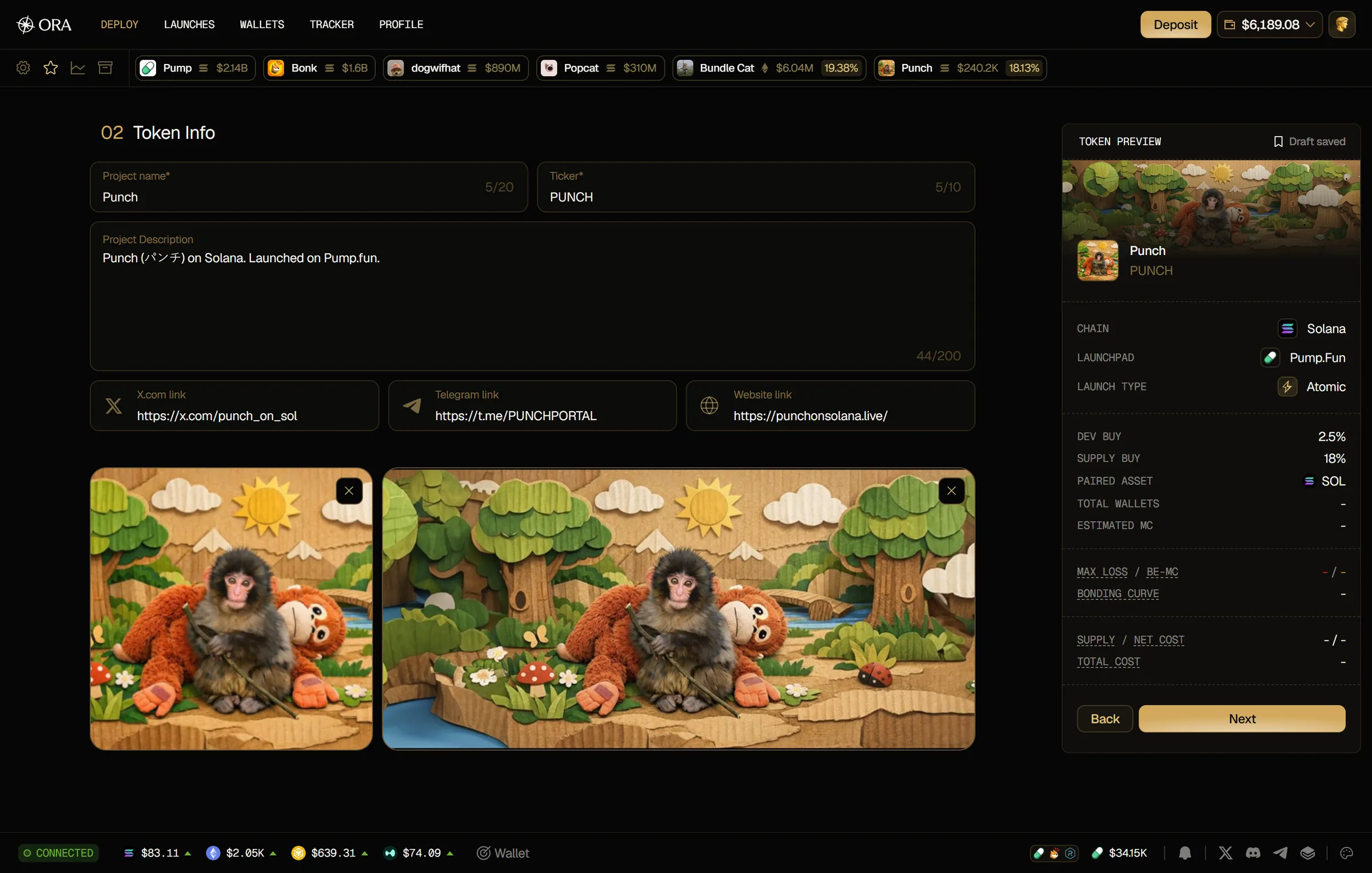
Fields and rules
Section titled “Fields and rules”- Project name (required): up to 20 characters.
- Ticker (required): up to 10 letters and numbers. It's turned into uppercase automatically.
- Project Description (optional): up to 200 characters.
- X.com link (optional): must start with
https://x.com/. - Telegram link (optional): must start with
https://t.me/orhttps://telegram.me/. - Website link (optional): any valid web link, such as
https://yoursite.com. - Upload Logo (required): PNG or JPG, 250x250 recommended, up to 5 MB.
- Upload Banner (optional): PNG or JPG, 1500x500 recommended, up to 5 MB.
If a link doesn't match its rule, an error shows under the field and Next stays disabled until you fix it or clear it.
X link on Ponsfamily
Section titled “X link on Ponsfamily”On Ponsfamily, your X link must point to an account, like https://x.com/username, not to a post. If you paste a post link, Ora turns it into the account link for you. Any other link shows Must be an X account link (https://x.com/username) and blocks the next step.
How to fill your token info
Section titled “How to fill your token info”- Enter the Project name and Ticker, and add a Project Description if you want one.
- Add your social links: X, Telegram and website.
- Upload your logo and, if you have one, a banner.
- Click Next. It unlocks once the name, ticker and logo are set and every link you added is valid.