Ora Overview
Import Wallets
Bring wallets you own into Ora with their private keys, into your wallets or into a launch.
There are three ways to bring wallets into Ora:
- My Wallets import: add wallets you own with their private keys.
- DEV wallet import: use one of your wallets as the DEV wallet of a launch.
- Launch import: add wallets you imported into My Wallets to a new launch, with the Import Wallets option.
Import wallets into My Wallets
Section titled “Import wallets into My Wallets”Bring wallets you already own into Ora with their private keys.
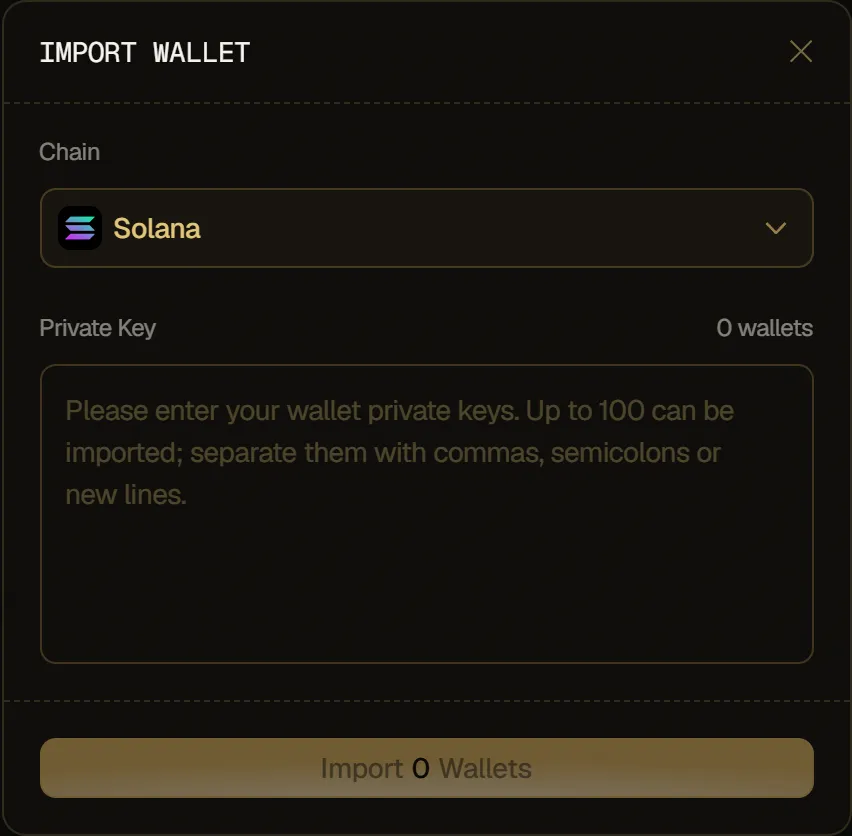
- Open Wallets in the top navigation. It opens on the My Wallets tab.
- Click Import in your wallets panel.
- In the Import Wallet window, choose the wallets' Chain. When your wallets list is filtered to a chain, it starts on that chain.
- Paste your keys in Private Key, separated by commas, semicolons or new lines.
- Click Import N Wallets.
- Format: one private key per wallet, all on the chain you picked.
- Limit: up to 100 private keys per import. With more than 100 keys, the import button stays disabled.
- Counter: the number above the field shows how many keys Ora reads. Empty entries and extra separators don't count.
Import a DEV wallet for a launch
Section titled “Import a DEV wallet for a launch”Use one of your own wallets as the DEV wallet of your launch.
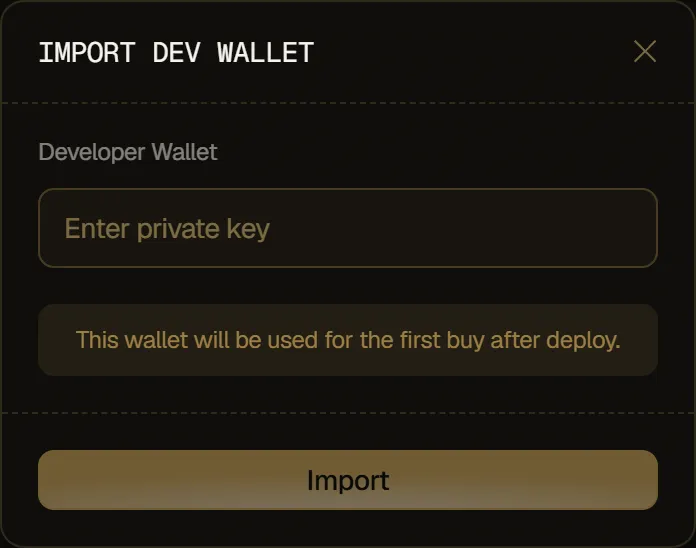
- In the Wallets step of the deploy flow, choose Custom Number.
- On the DEV row of your wallets table, click the import icon (Import dev wallet) in the Actions column.
- In the Import DEV wallet window, paste the wallet's private key in Developer Wallet.
- Click Import. The button stays disabled until you paste a key.
- Format: one private key.
- When: the import icon only shows in Custom Number, before you click Create Token.
- After: this wallet makes the first buy after deploy.
Add your Ora wallets to a launch
Section titled “Add your Ora wallets to a launch”Add wallets you already imported into My Wallets to a new launch, instead of aged or fresh ones. This option doesn't ask for private keys again: it lists your imported wallets that no launch holds yet.
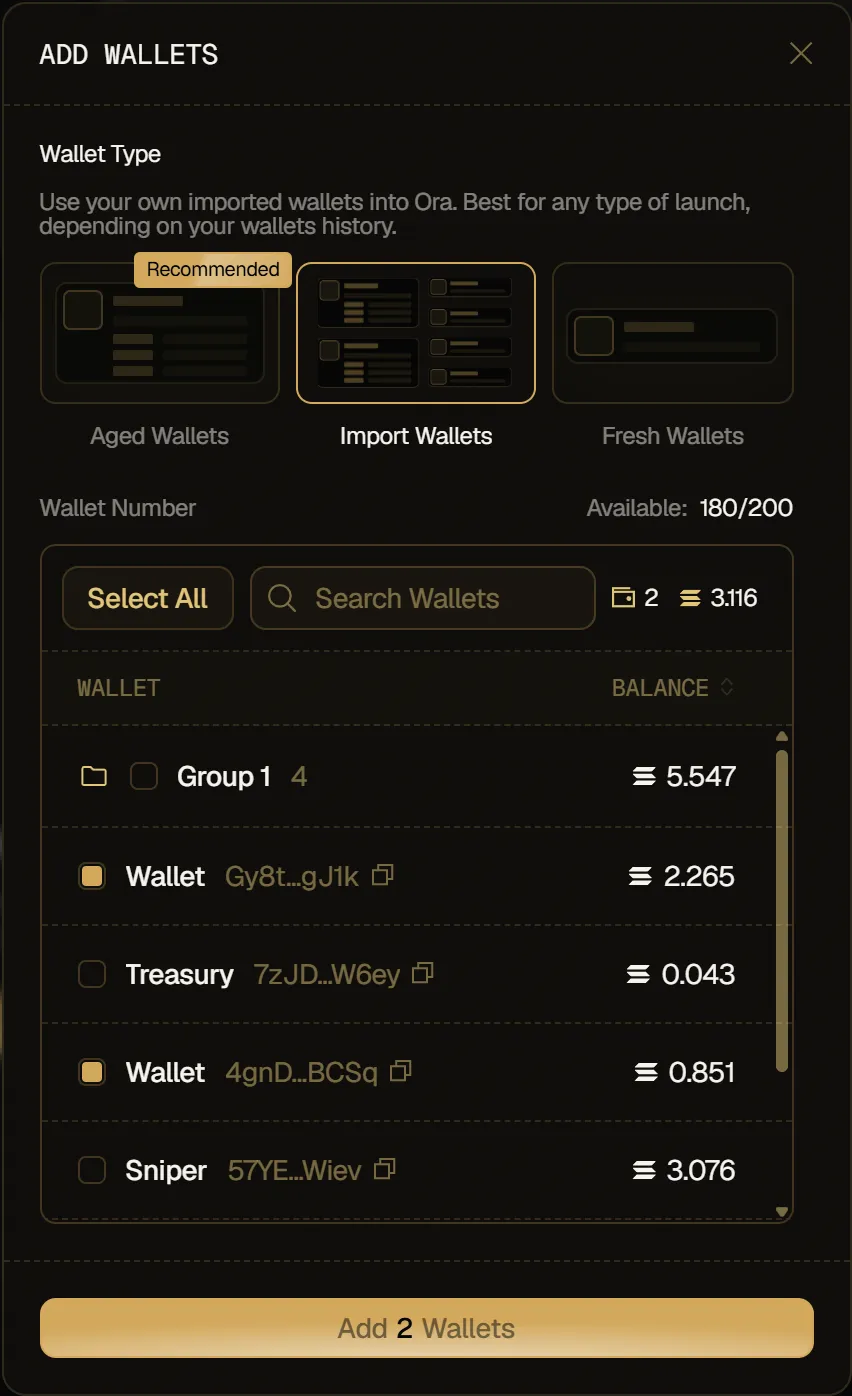
- In the Wallets step of the deploy flow, choose Custom Number.
- Click Add wallets, or Add above your wallets table.
- In the Add wallets window, pick Import Wallets under Wallet Type.
- Tick the wallets to add. You can use Select All, Search Wallets, tick a whole group, or hold Shift and click to tick a range. The counters next to the search show how many wallets you ticked and their total balance.
- Click Add N Wallets.
- Which wallets: the wallets you imported into My Wallets, on the same chain as this launch, that no launch holds yet. They are grouped as in My Wallets. Wallets you archived or deleted there, and wallets already on this launch, don't show. If you have none, the list shows a message like No imported wallets available on Solana.
- Limit: Available shows how many wallets your launch can still take. Past that, you get You can add up to N wallets.
- After: the wallets join your wallets table with an Imported badge.