Ora Overview
My Wallets
Find the wallets from each launch, your holdings, and withdraw your funds.
Launch wallets
Section titled “Launch wallets”The My Wallets tab of the Wallets page shows the wallets from each of your launches, what they still hold, and lets you withdraw your funds.
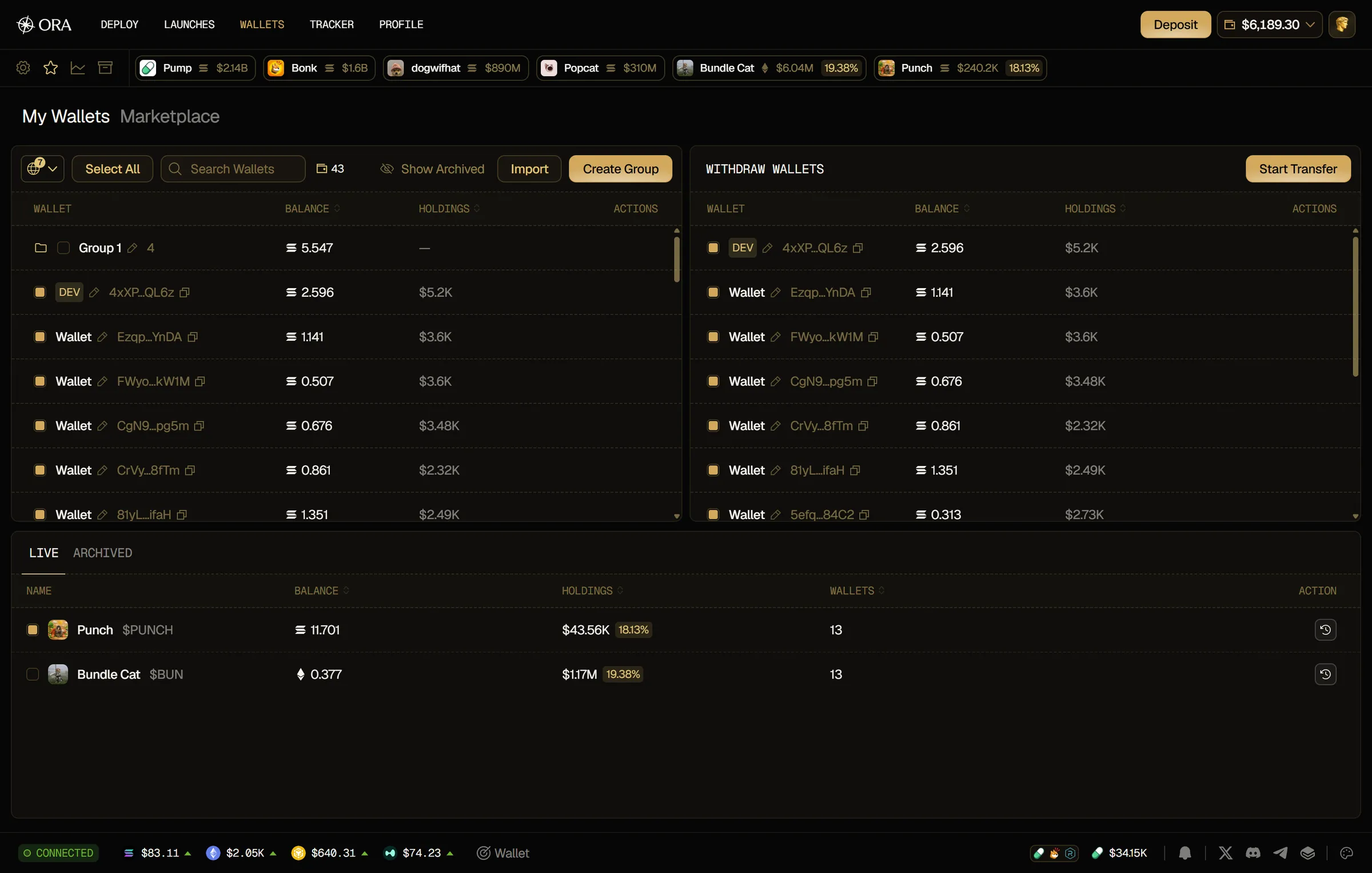
At the top left, your wallets panel lists the wallets of all your launches, with their Balance and Holdings. Above it, filter the list by chain, use Search Wallets to find a wallet by name or address, and see the number of listed wallets and, when they're all on the same chain, their total balance. Click the pencil icon next to a wallet to rename it, and Create Group to put the ticked wallets in a new group. Drag a wallet to move it in the list or into a group. Hover a wallet to open it in the chain's explorer (Open in Solscan on Solana), to delete it (Delete wallet) or, on a DEV wallet, to export its private key (Export private key).
At the top right, Withdraw Wallets shows the wallets you select to withdraw from.
At the bottom, your launches are listed in two tabs, LIVE for the tokens still trading that you still hold some of, and ARCHIVED for the ones you've archived, with:
- Name: the token's logo, name and ticker.
- Balance: the total native balance of the launch's wallets (SOL on Solana).
- Holdings: the value of the tokens they still hold, and the share of supply it represents.
- Wallets: the number of wallets in the launch.
A token that isn't launched yet, or whose launch has ended, is in neither tab unless you archive it. Until then, its wallets stay in your wallets panel.
See the wallets of a launch
Section titled “See the wallets of a launch”Tick one or more launches: their wallets appear at the top right, in Withdraw Wallets. You can also add wallets one by one: tick them in your wallets panel, click Select All, or drag them onto Withdraw Wallets. Until you select a launch or a wallet, this panel shows Select Wallets or Launch to withdraw.
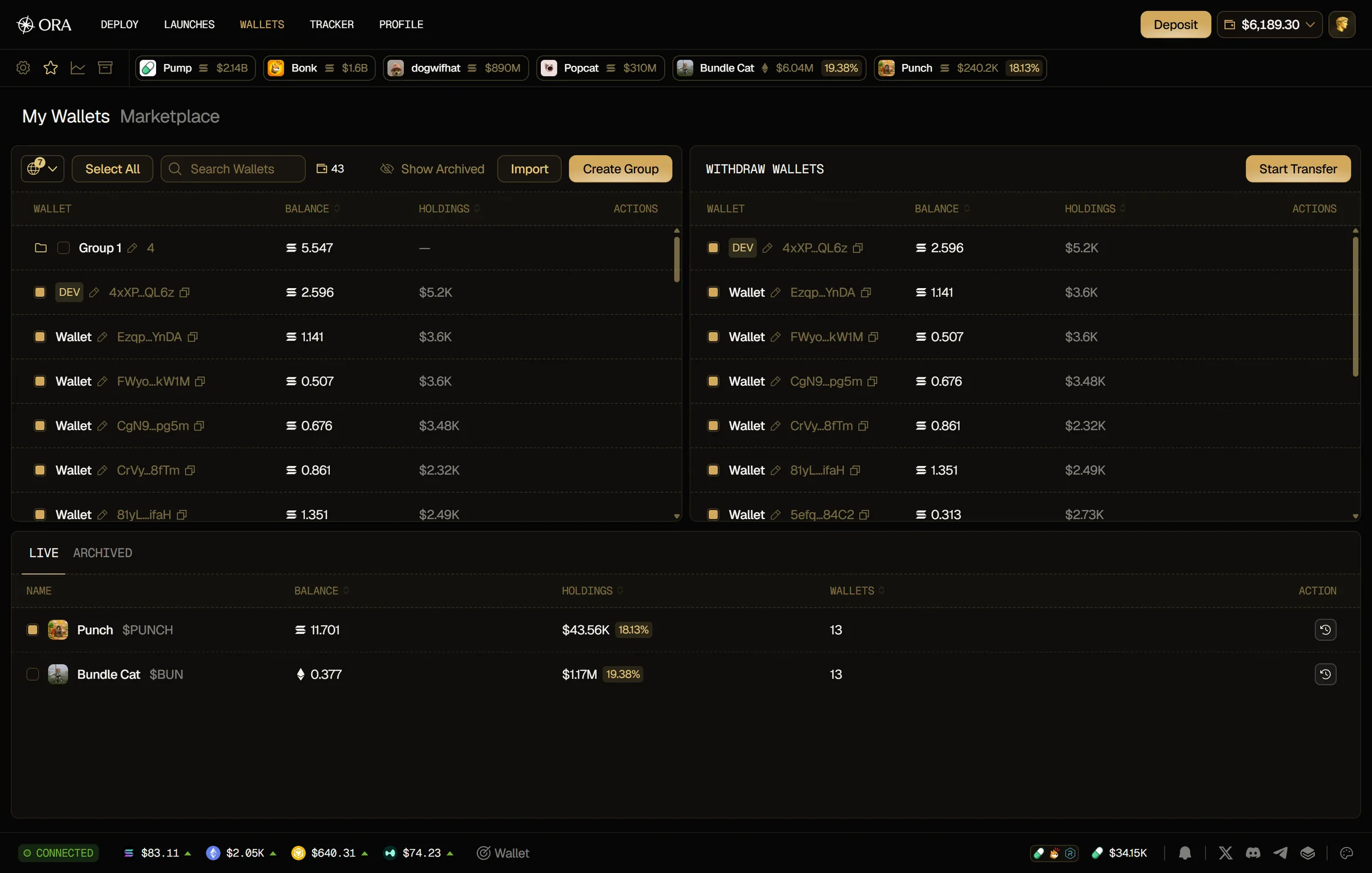
For each wallet, you see its name and address (the DEV wallet has a DEV badge), its Balance and its Holdings. Click a wallet to take it out of the list.
Withdraw from launch wallets
Section titled “Withdraw from launch wallets”- Tick the launches you want to withdraw from, or add their wallets one by one.
- Review the wallets in Withdraw Wallets, and click any wallet you want to leave out.
- Click Start Transfer, then confirm in the Withdraw Funds window.
See Withdraw Funds for the details.
Archive a launch
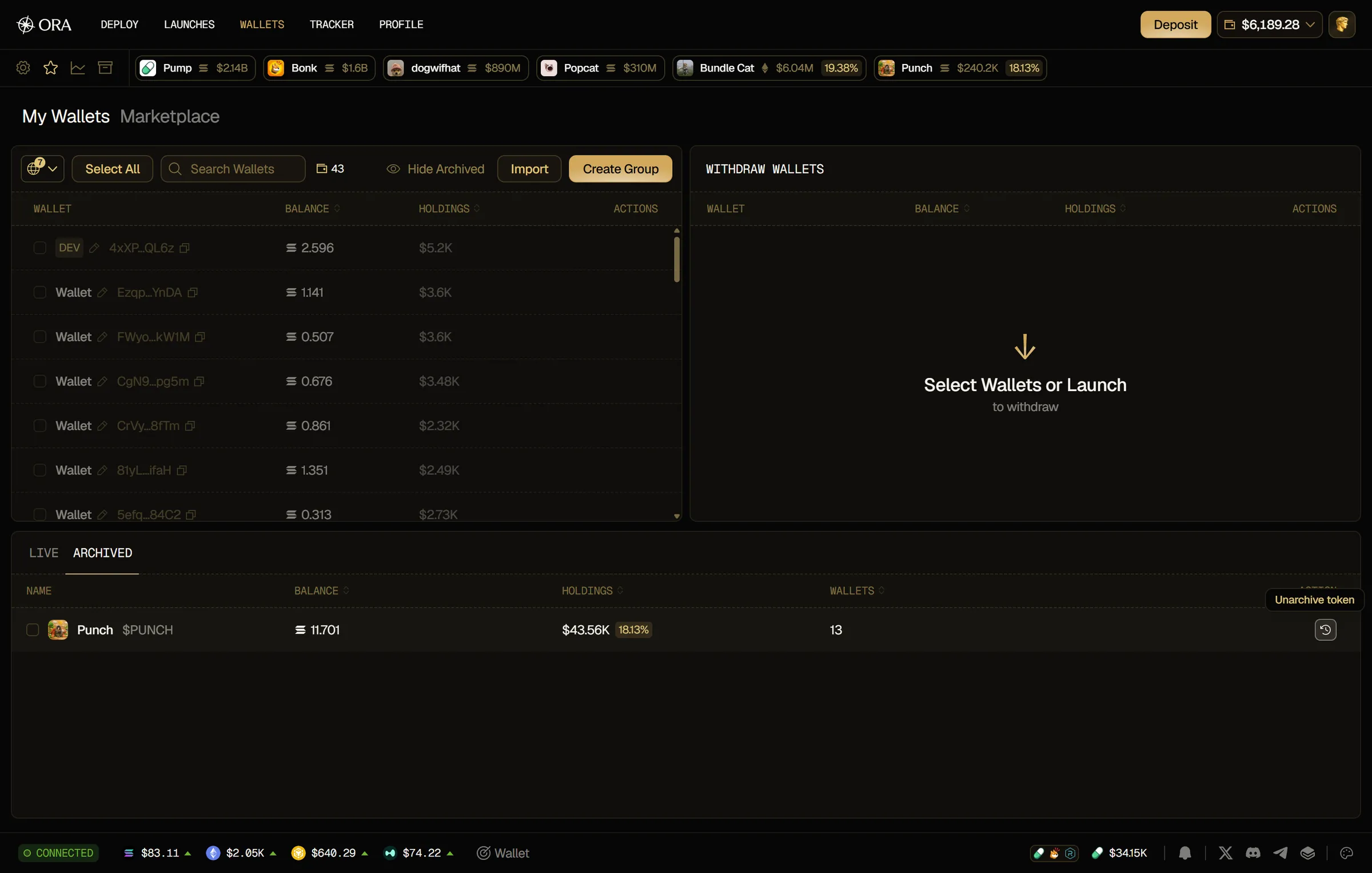
Section titled “Archive a launch”To hide a launch you're done with, click the clock icon in its Action column (Archive token). You get Token archived, the launch moves to the ARCHIVED tab and its wallets leave your wallets panel.
Open the ARCHIVED tab to see your archived launches again. To bring a launch back, click its icon again (Unarchive token). In your wallets panel, click Show Archived to see the wallets of archived launches again, and Hide Archived to hide them. You can also archive a single wallet or a group with the clock icon that shows when you hover its row (Archive wallet, Archive group). Your archived launches are also listed in the Archived tokens view of the ticker row.
Your own wallets
Section titled “Your own wallets”The My Wallets tab also holds wallets that don't come from a launch:
- wallets you own, imported with their private keys. See Import Wallets.
- wallets you buy on the Marketplace.