Ora Overview
Marketplace
Buy ready-made wallets with an on-chain history, filtered by tier, chain and funding.
The Marketplace is a tab of the Wallets page where you buy ready-made wallets. Each wallet already has an on-chain history, and you can use them in your launches as aged wallets.
What you buy
Section titled “What you buy”Each listing is one wallet on one chain. For every wallet, you see:
- its tier: Gold or Diamond.
- its price, in USDC.
- the balance it comes with, in the chain's native token (SOL on Solana).
- the tokens it holds.
- its number of transactions.
- its funding: the exchange or service it was funded through, such as Husher, and how long ago.
Wallet tiers
Section titled “Wallet tiers”

Gold wallets have a history of on-chain transactions. Diamond wallets have on-chain activity and also hold tokens.
Open the Marketplace
Section titled “Open the Marketplace”- Click Wallets in the top navigation. You need to be logged in.
- Open the Marketplace tab, next to My Wallets.
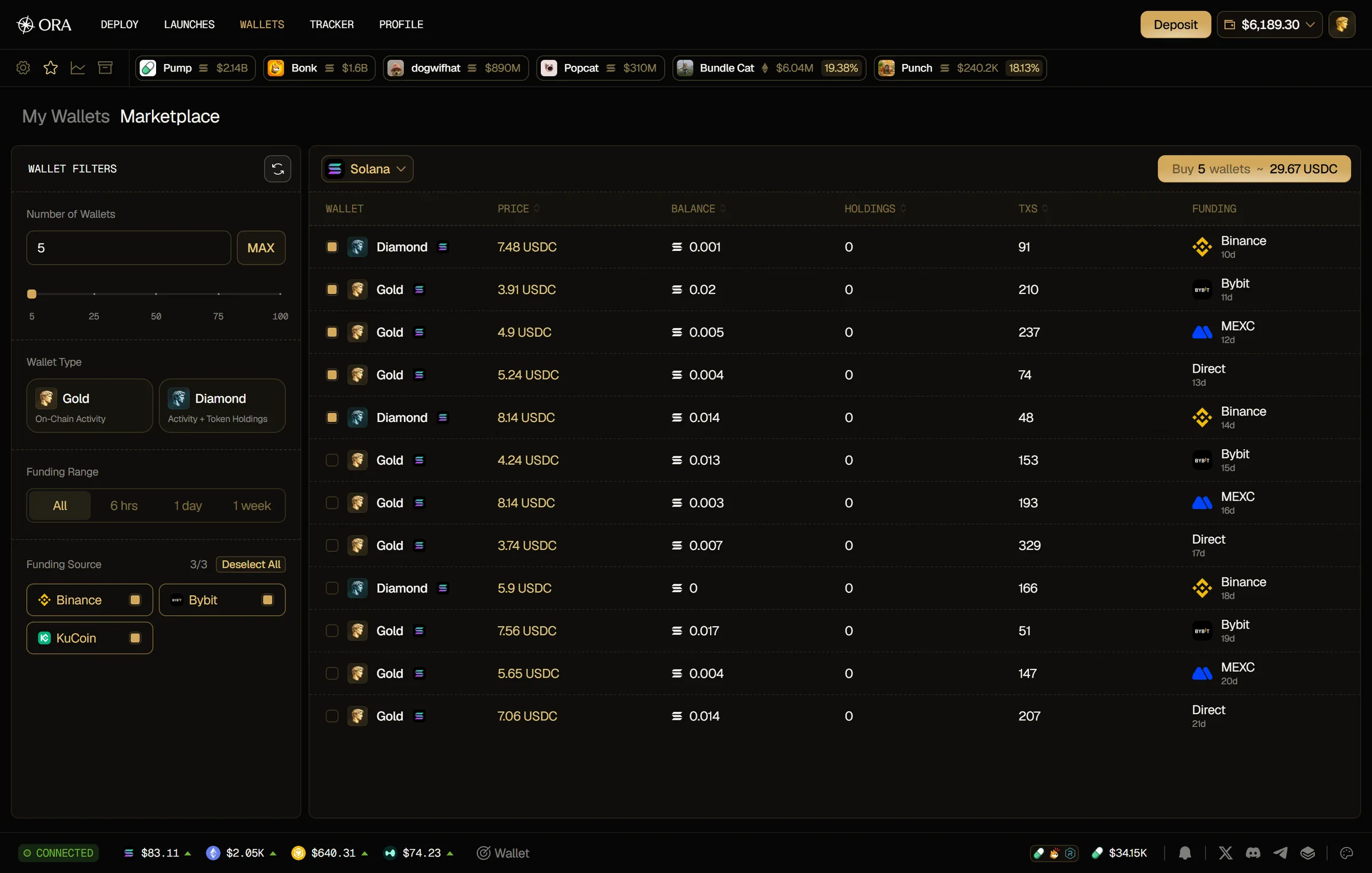
The Wallet Filters panel sits on the left and the listings on the right. On smaller screens, the filters move above the listings.
Filter the listings
Section titled “Filter the listings”The Wallet Filters panel opens with Number of Wallets, which sets how many wallets you select (see Select wallets). Below it, narrow down the listings:
- Wallet Type: click Gold or Diamond to show only that tier. Click it again to show both.
- Funding Range: choose All, 6 hrs, 1 day or 1 week. All, the default, doesn't filter on when the wallets were funded.
- Funding Source: tick the exchanges the wallets were funded from: Binance, Bybit and KuCoin. All three are ticked by default, the counter shows how many are ticked (3/3), and Select All / Deselect All switches the whole list. With all three ticked, the listings aren't filtered by source, so wallets funded through other exchanges or services, or directly (Direct), show too.
At the top of the listings, pick the chain in the dropdown. The listings show one chain at a time.
To go back to the default filters, click the reset icon next to Wallet Filters. When no wallet matches, the table shows No wallets match these filters.
Read the table
Section titled “Read the table”- Wallet: the wallet's tier and chain.
- Price: what the wallet costs, in USDC.
- Balance: the native balance that comes with the wallet.
- Holdings: how many tokens the wallet holds, with their logos. Hover it to see its 5 largest positions and the value of all its tokens (Tokens Value).
- TXs: the wallet's number of transactions.
- Funding: the exchange or service the wallet was funded through, such as Husher, or Direct when it wasn't funded through one, and how long ago.
Click the Price, Balance, Holdings or TXs header to sort the table: once for ascending, again for descending.
Select wallets
Section titled “Select wallets”You can select wallets in two ways:
- Number of Wallets: at the top of the filters panel, type a number, click MAX or use the slider. Ora ticks that many wallets from the top of the table, in the order shown, so sort the table first to pick, for example, the cheapest ones. When you open the tab, the first 5 wallets are ticked.
- By hand: click a row or its checkbox. Hold Shift and click another row to tick or untick every row in between.
Changing a filter starts your selection over from Number of Wallets.
Buy wallets
Section titled “Buy wallets”-
Click Buy N wallets at the top of the listings. The button shows the total price of the wallets you selected, in USDC.
-
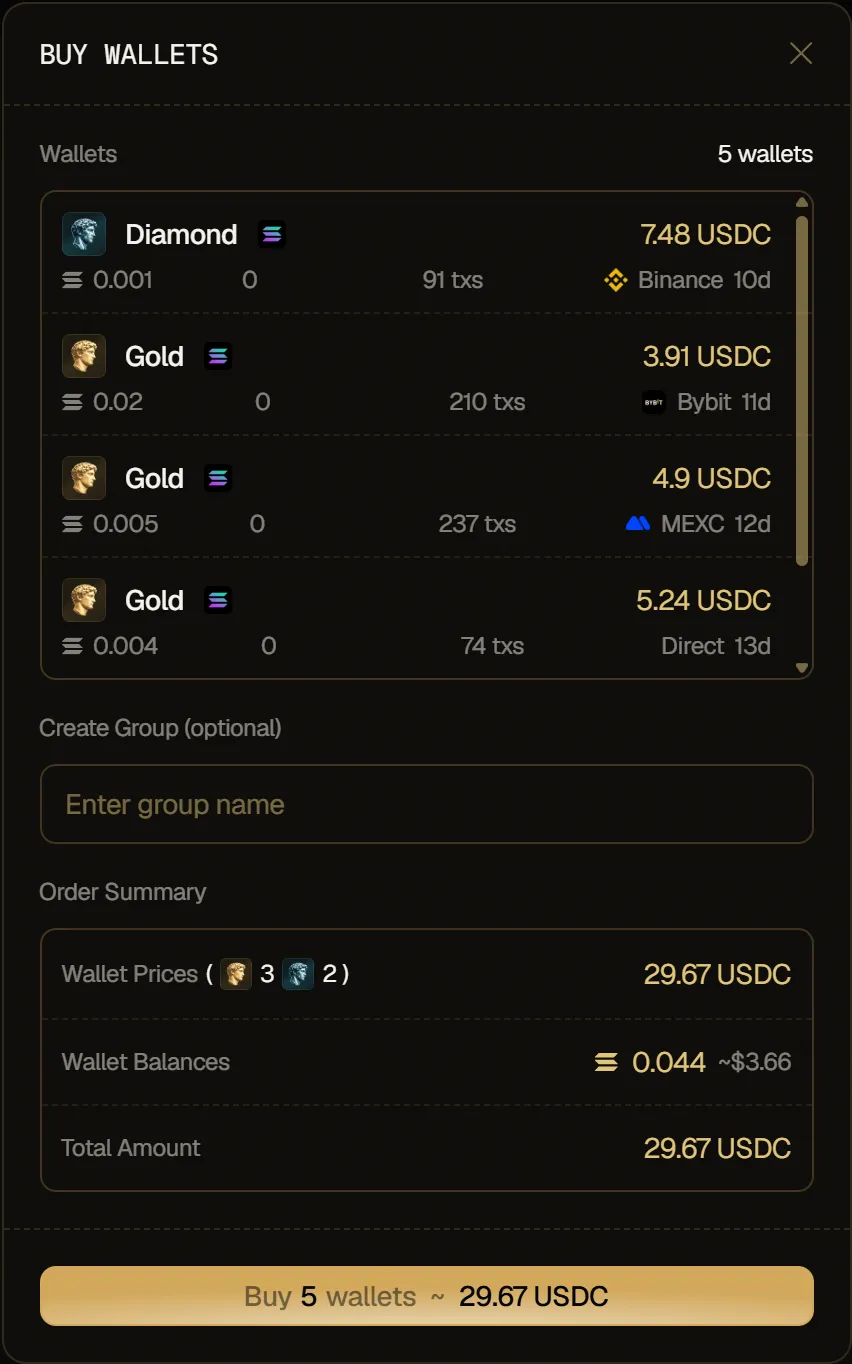
In the Buy wallets window, check the list of wallets you're buying, with the tier, price, balance, holdings, transactions and funding of each one.
-
To put the wallets you buy in a new group of your My Wallets tab, type its name under Create Group (optional). Leave it empty to skip.
-
Check the Order Summary:
- Wallet Prices: the price of your wallets, in USDC, with how many are Gold and how many Diamond.
- Wallet Balances: the balances that come with them, in the chain's native token and in dollars.
- Total Amount: the sum of the wallet prices, in USDC. The balances come with the wallets and aren't added on top.
-
Click Buy N wallets to confirm.
A notification follows your purchase, with Buying N wallets... while the payment goes through, then Bought N wallets. The wallets you bought leave the Marketplace and show up in your My Wallets tab.
If Husher hasn't completed the payment after 2 minutes, the notification reads Payment sent: the wallets will appear in your Wallets once Husher completes it instead. The wallets are already reserved for you: they leave the Marketplace, and reach your My Wallets tab once Husher completes the payment. If the purchase fails, the notification tells you why.
Aged wallets in your launches
Section titled “Aged wallets in your launches”The Marketplace wallets are also the Aged Wallets you can add to a launch.
- In the Wallets step of the deploy flow, choose Custom Number.
- Click Add wallets, or Add above your wallets table.
- In the Add wallets window, keep Aged Wallets under Wallet Type: it's picked by default, with a Recommended badge.
- Set the Wallet Number. Available shows how many wallets your launch can still take.
- Check the Order Summary, which splits the wallets Ora buys for you between Gold and Diamond (aged wallets you already own aren't in it), then confirm with the button at the bottom of the window.
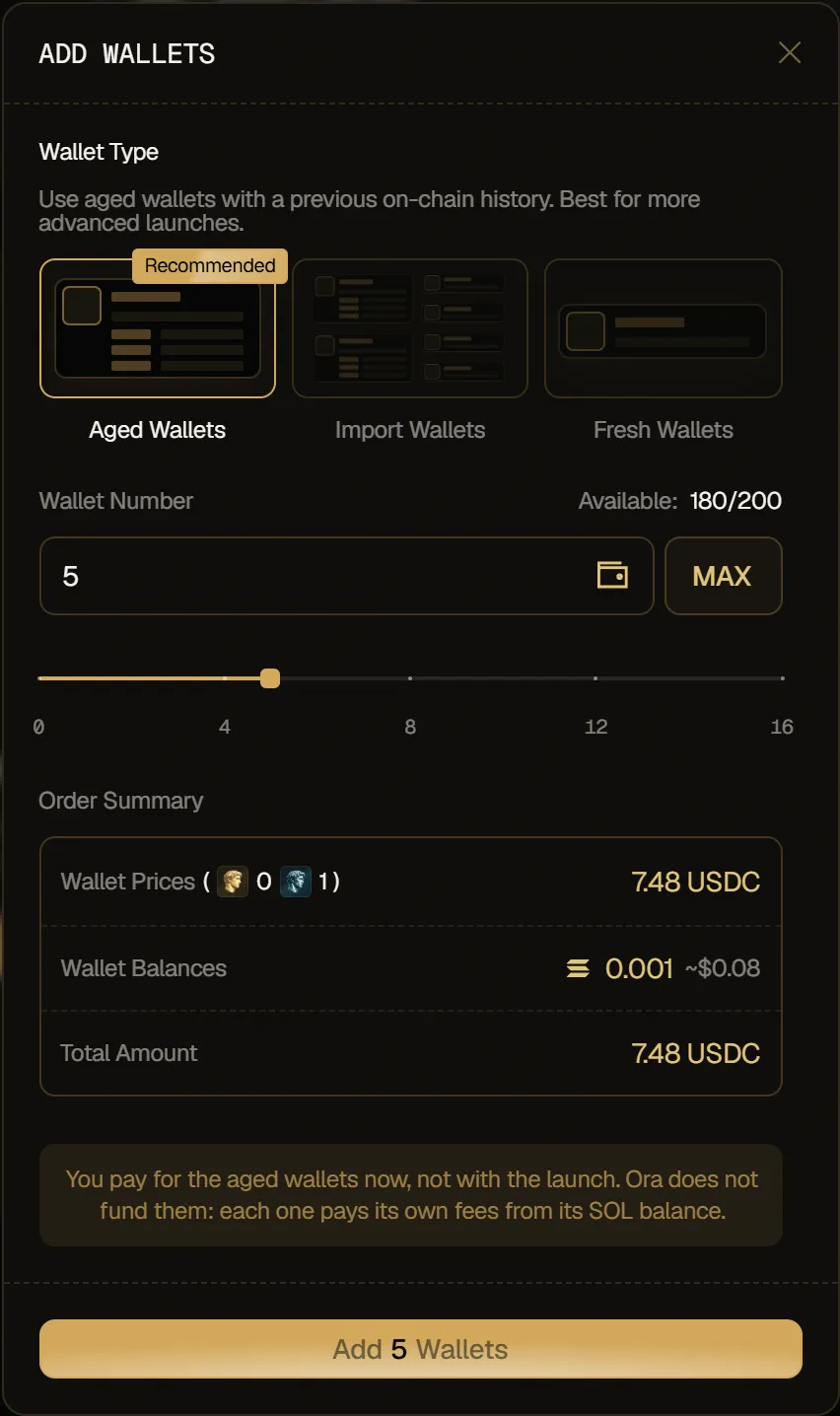
Ora first takes the aged wallets you already bought on the Marketplace, on your launch's chain, that no launch holds yet: you don't pay for them again. The rest come from the first wallets the Marketplace lists by default on that chain: you choose how many, not which ones. They join your wallets table, where the Wallet Type column shows their tier, Gold or Diamond. The price of the wallets you buy this way shows as Wallet Cost (paid) in the sidebar: you pay for them when you add them, not with the launch.
For more on wallet types and funding, see Wallet Funding.