Burn Supply
Permanently remove tokens from a wallet to reduce supply and signal commitment to your project.
Managing your Token
Manage token trades, launch controls, wallet positions, and market data in Ora.
In Ora, the trading page is where you manage and trade all your tokens, before and after their deploy. You can also customize your interface in different ways, making it as efficient as possible.
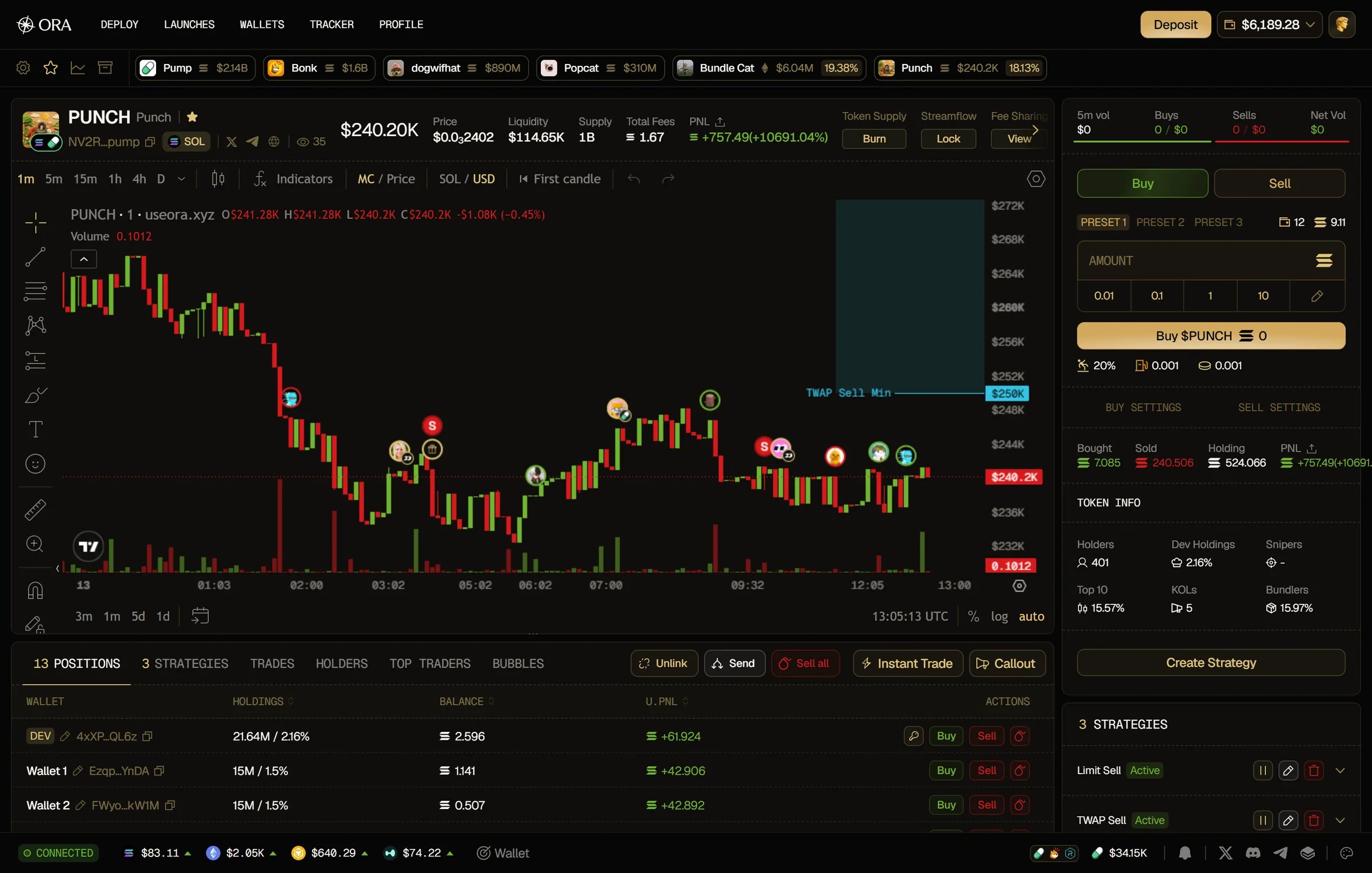
Every Ora user can take advantage of advanced options to manage their launch easily without having to switch between different websites. Burn, Lock and Claim sit at the top of the token page, and Unlink and Send are on the Positions tab.
Permanently remove tokens from a wallet to reduce supply and signal commitment to your project.
Lock tokens from your dev wallet for a set period, through Streamflow on Solana or HoodLock on Robinhood.

Claim the creator fees your token volume generates, whenever you want.
Automate your buys and sells with mirror, TWAP or limit strategies that run across your wallets.

Send a share of your supply from your wallets to up to 5 addresses.

Visualize how your supply is spread across wallets and spot clusters at a glance.
Execute buys and sells faster with a one-click widget across multiple wallets.
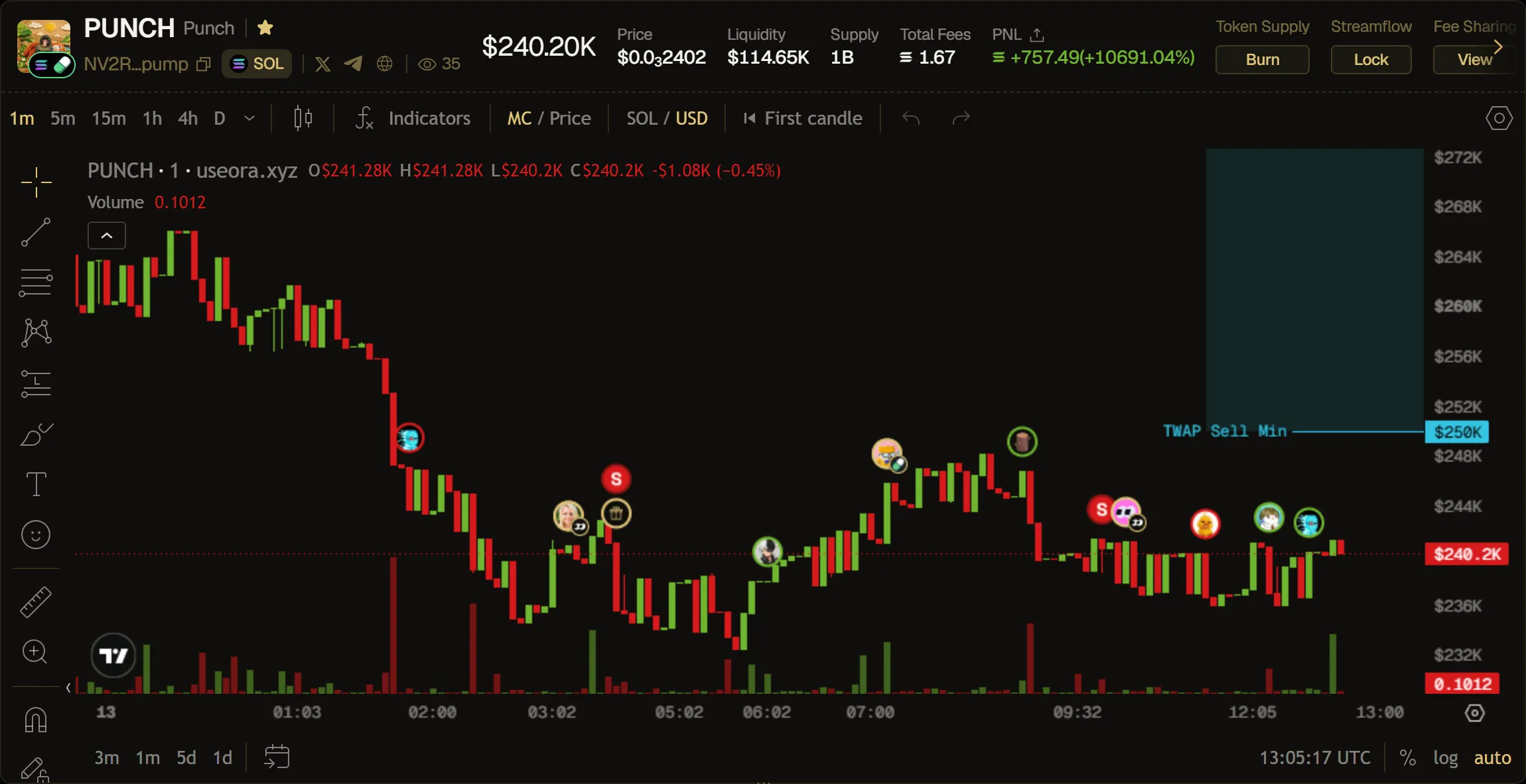
You can view all the metrics (marketcap, price, liquidity, supply, total fees), as well as the socials (Twitter, Telegram, website) right above the chart.

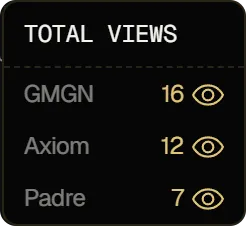
You can track how many people are looking at your chart in real-time to measure the hype around your launch and see which trading terminal they're coming from (GMGN, Axiom or Padre).
You can see and adjust the token chart in real-time and even customize it to show certain data such as your buy/sell by playing with the settings on the top right side.
You can keep track and manage all your wallet holdings in the "Positions" tab, before launch or after launch. See your unrealized PNL per wallet in real-time, your supply left per wallet and more... The dev wallet's row also has a key icon to export its private key.
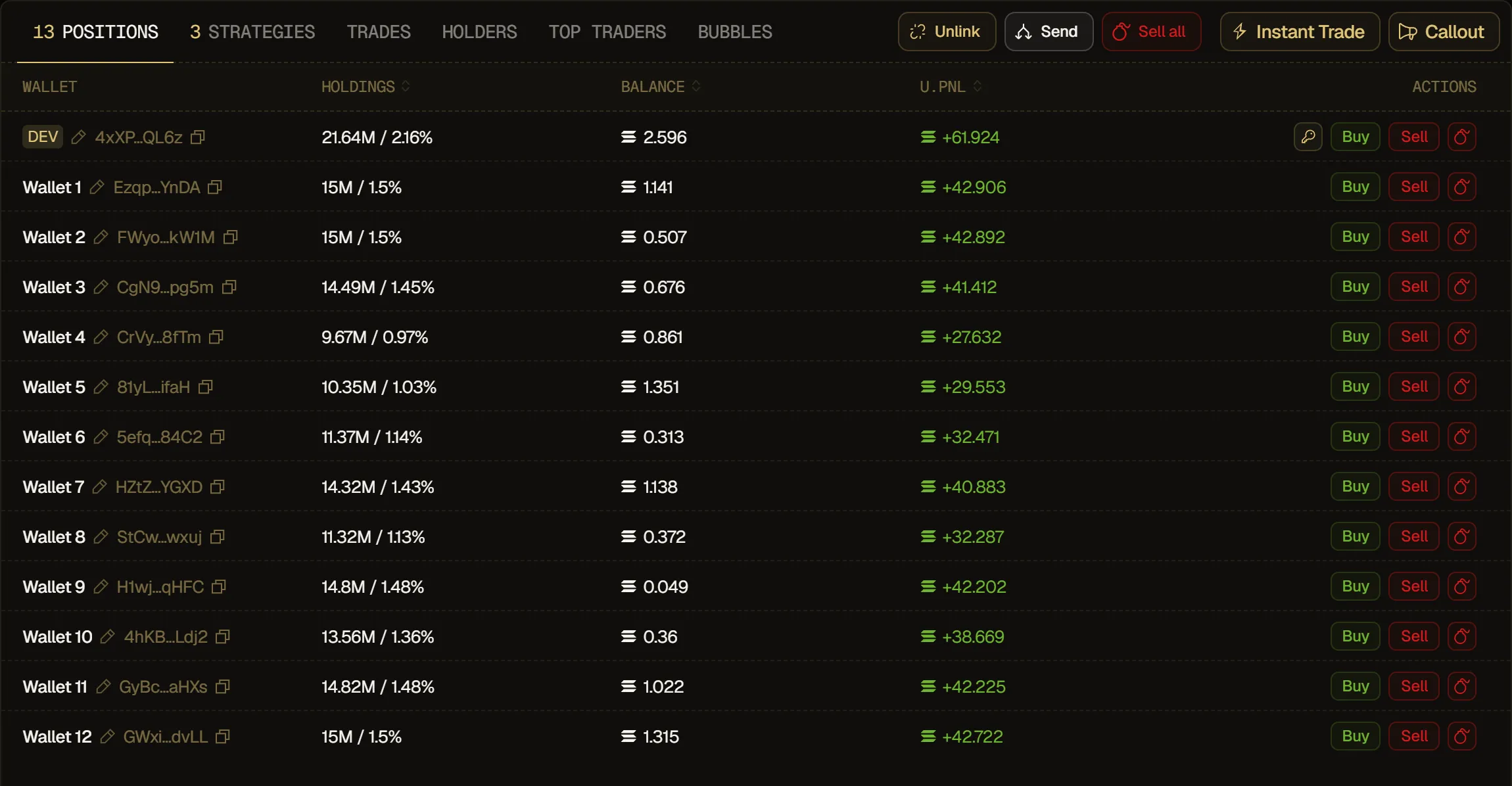
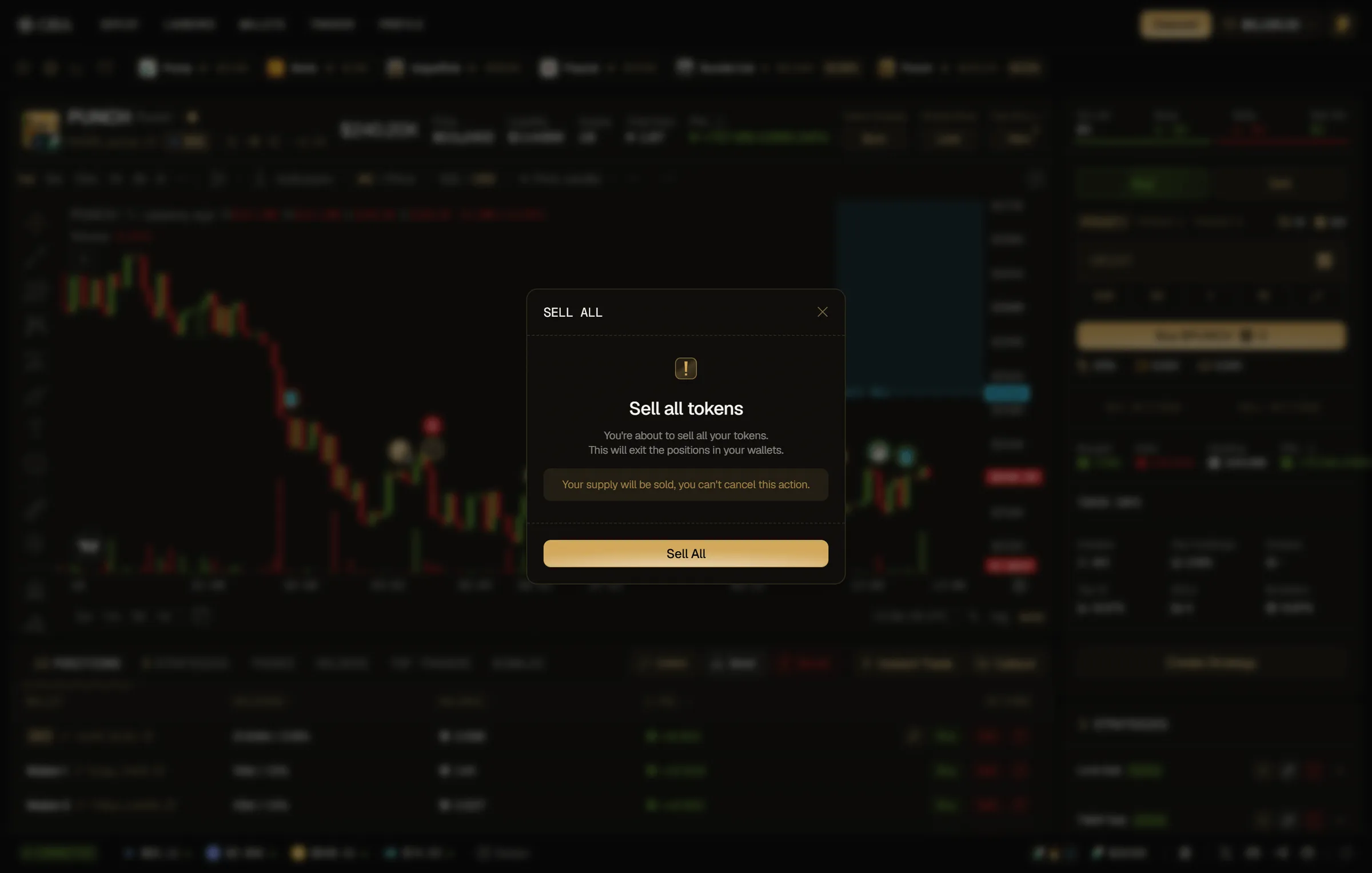
You can sell all your holdings across every wallet at once with Sell all on the Positions tab, then confirm with Sell All. It's a single action for exiting a token entirely and immediately, with no staggering. To exit a single wallet, use the bomb icon on its row.
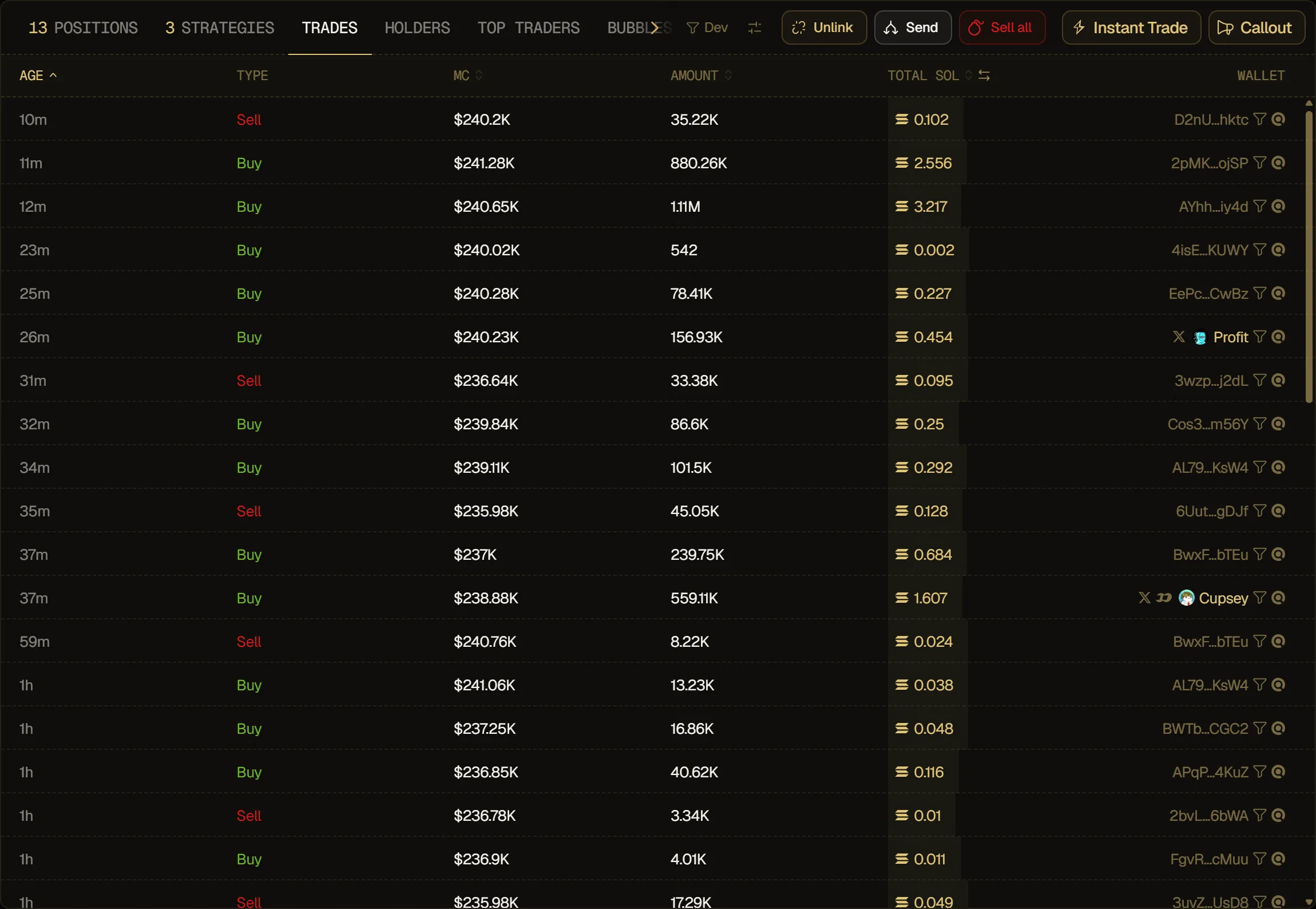
You can see all the trades in real-time and easily filter transactions or isolate a certain wallet to only see their transactions.
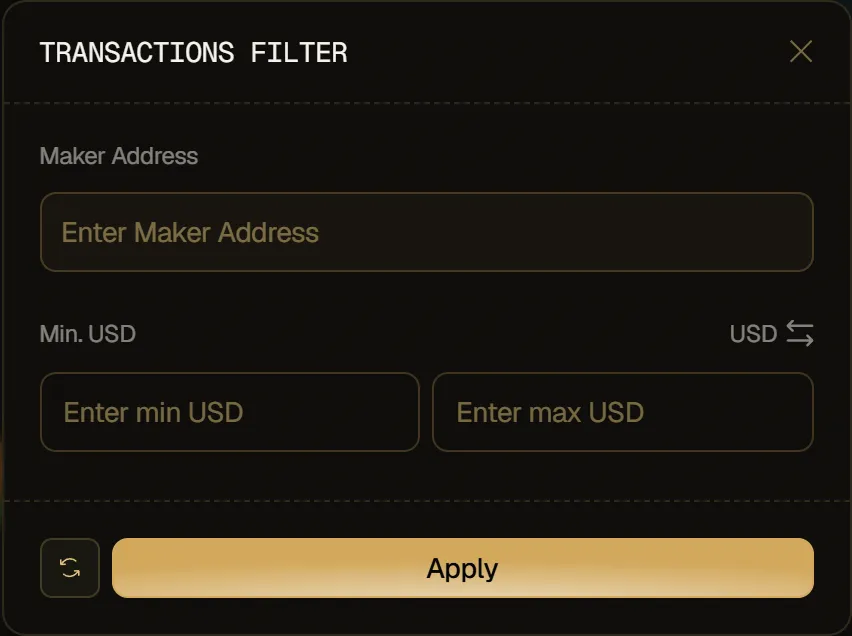
To open the transactions filter, click the Transactions filter icon in the table toolbar. You can filter by maker address and by a minimum and maximum amount, in USD or SOL. Click Dev to only see your dev wallet's trades.
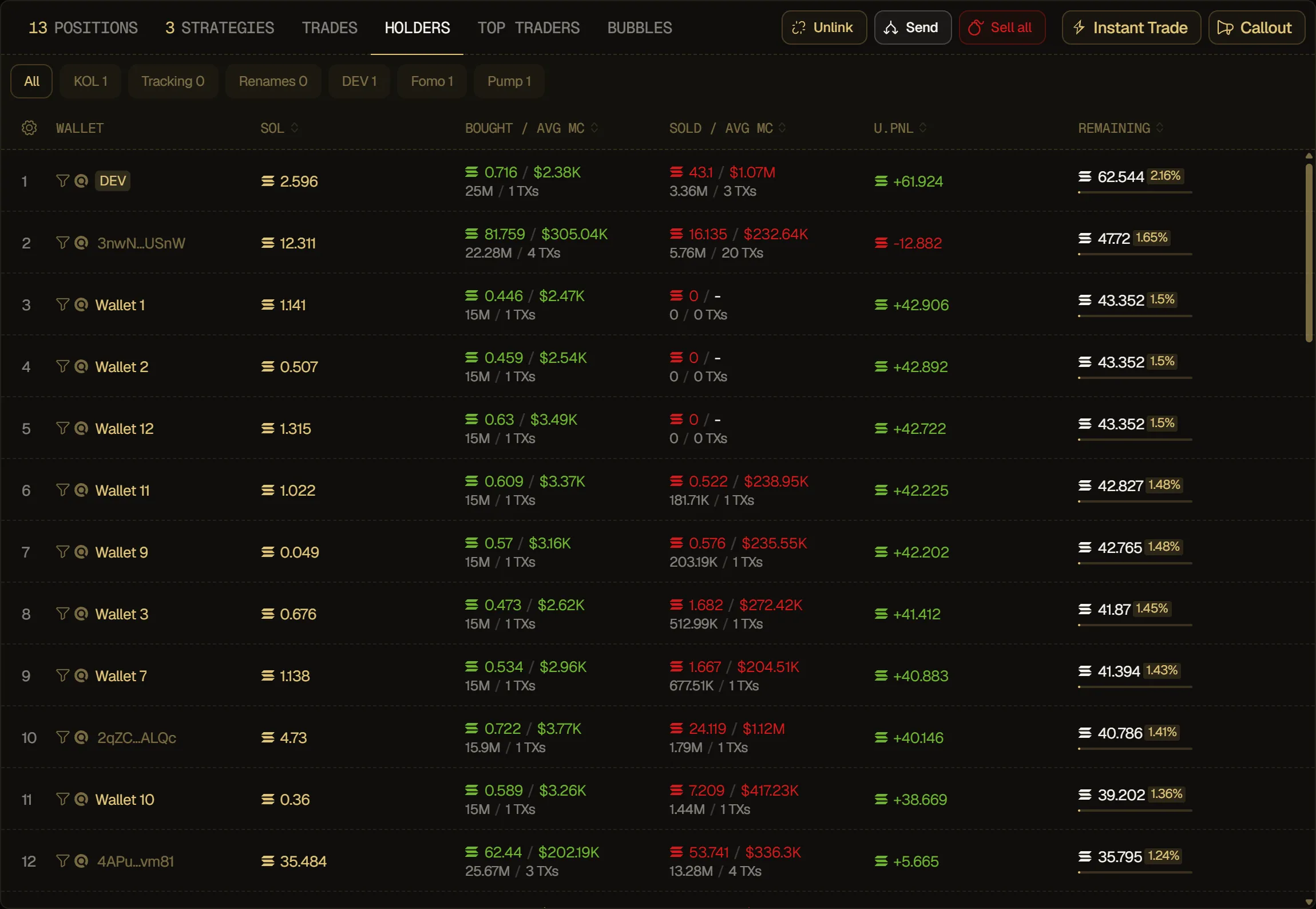
You can check all your holders, what they bought and sold, their PNL and their remaining supply. To focus on one wallet, click the filter icon next to its address. The chips above the table (KOL, Tracking, Renames, DEV, Fomo and Pump) show only one kind of holder, such as KOLs, the wallets you track or your dev wallet.
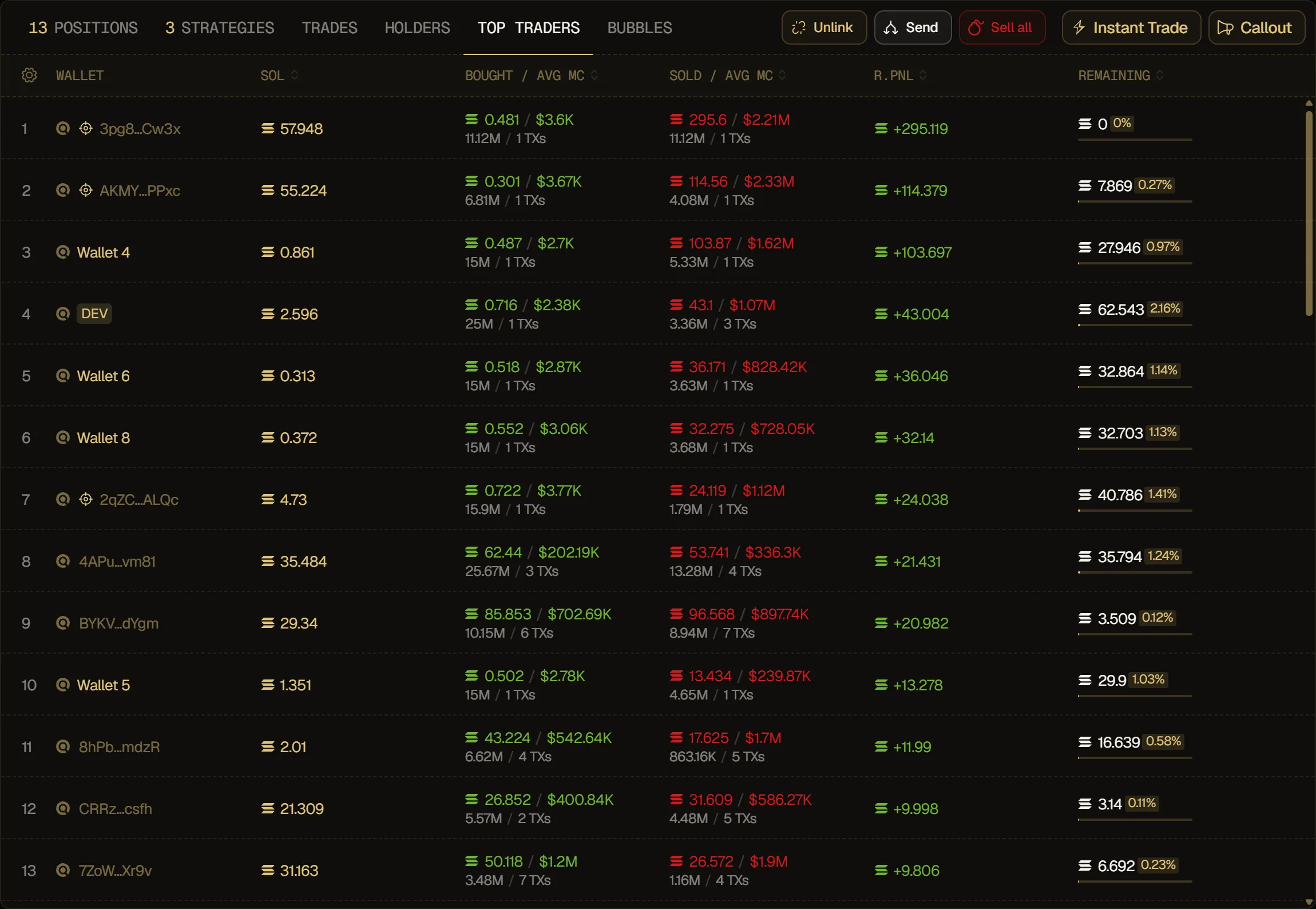
You can see all the top traders on your coins, their remaining supply, realized PNL and sort them in one click.
You can check the volume from a token and see the buys/sells on different timeframes (5min, 1h, 6h, 24h) right above the buy/sell section. Hover it to pick the timeframe.

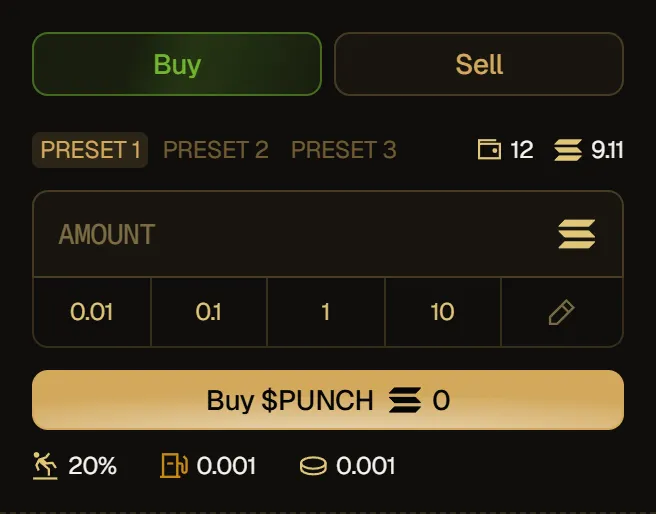
You can switch between different buy/sell amounts and customize your presets if you need to execute a transaction faster than usual.
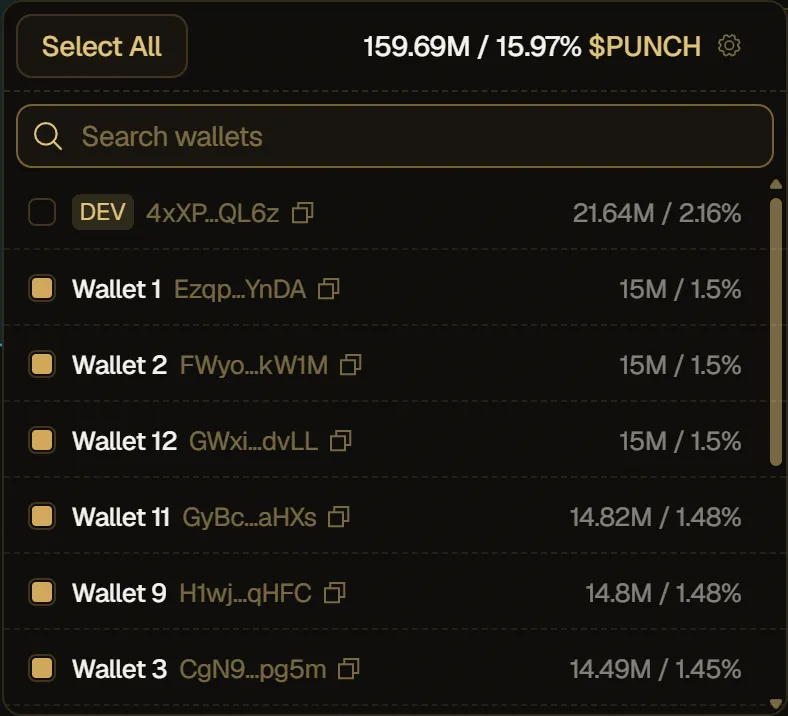
You can select/unselect and see all your wallets with tokens available to execute transactions with multiple wallets at the same time instead of changing between wallets.
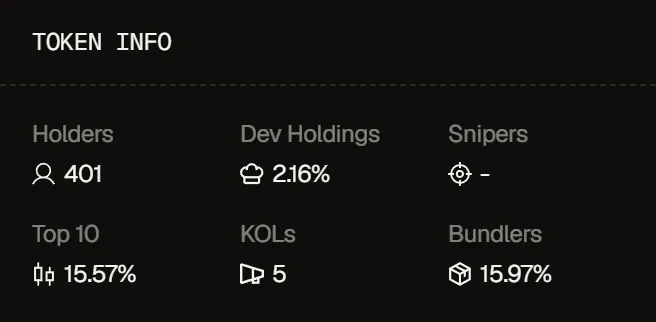
You can see all the important info on the right side to quickly see how the supply has been distributed and who's exactly holding it: Holders, Dev Holdings, Snipers, Top 10, KOLs and Bundlers.