Ora Overview
Launches
Pick up your unfinished drafts and follow your launches, in one place.
Open Launches in the top navigation to find everything you've started on Ora, organized into three tabs: DRAFTS, LIVE and ARCHIVED.
Drafts
Section titled “Drafts”The DRAFTS tab first lists the tokens you've created but haven't launched yet, newest first. Then come your drafts: the tokens you started in the deploy flow but haven't created yet.
There's no save button: Ora saves your draft automatically as you fill in the deploy flow, a moment after you stop typing. The Token Preview sidebar shows Saving..., then Draft saved. A draft is only created once you've typed a name or a ticker, so just opening the deploy flow doesn't add an empty draft.
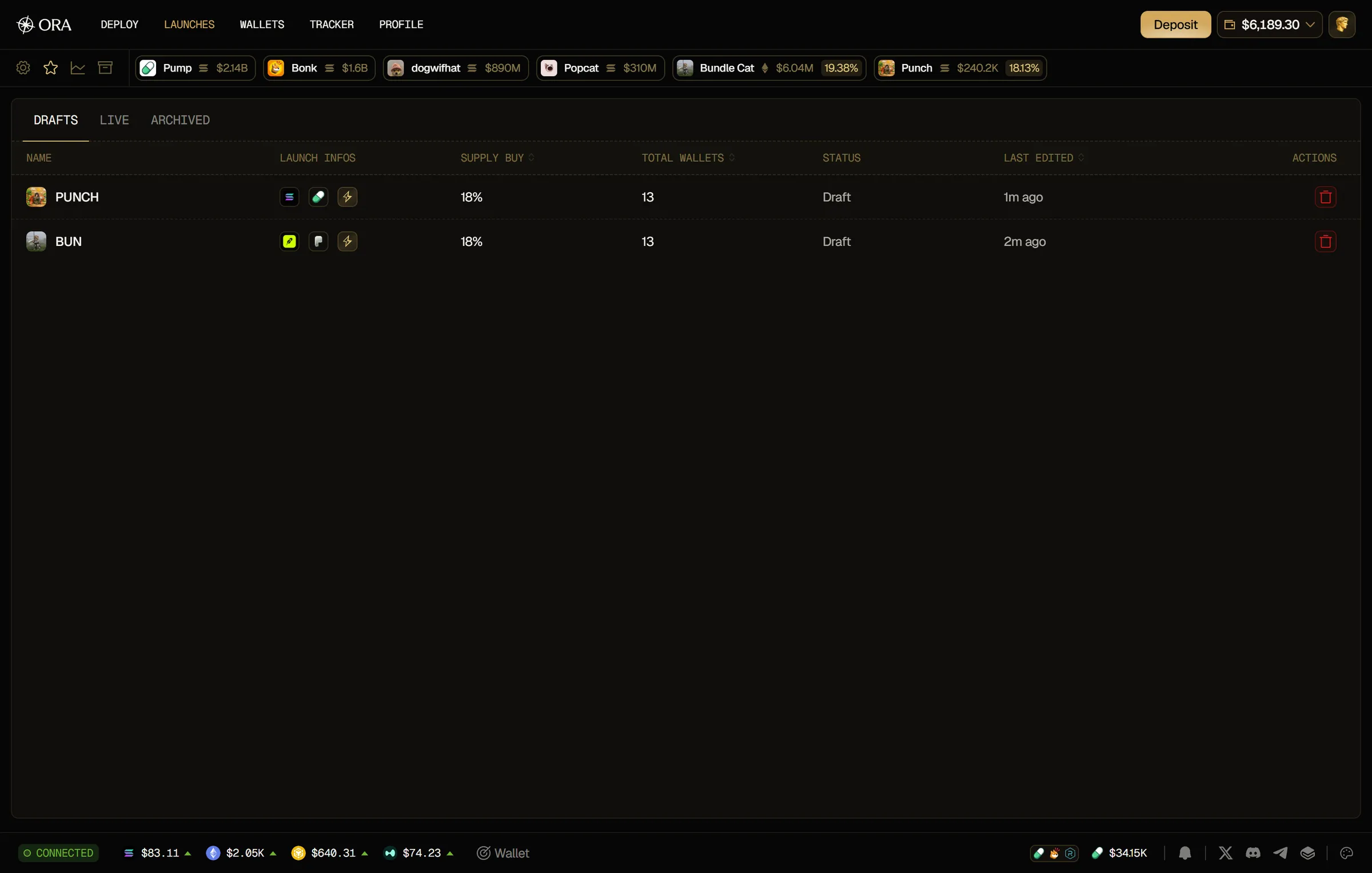
For each row, you see:
- Name: the token's logo and ticker, or its name until you type a ticker. A draft without a name or ticker shows Untitled draft.
- Launch Infos: the chain, the launchpad and the launch type you picked. A created token shows its chain and launchpad.
- Supply Buy: the share of supply you set to buy.
- Total Wallets: the number of wallets in your launch.
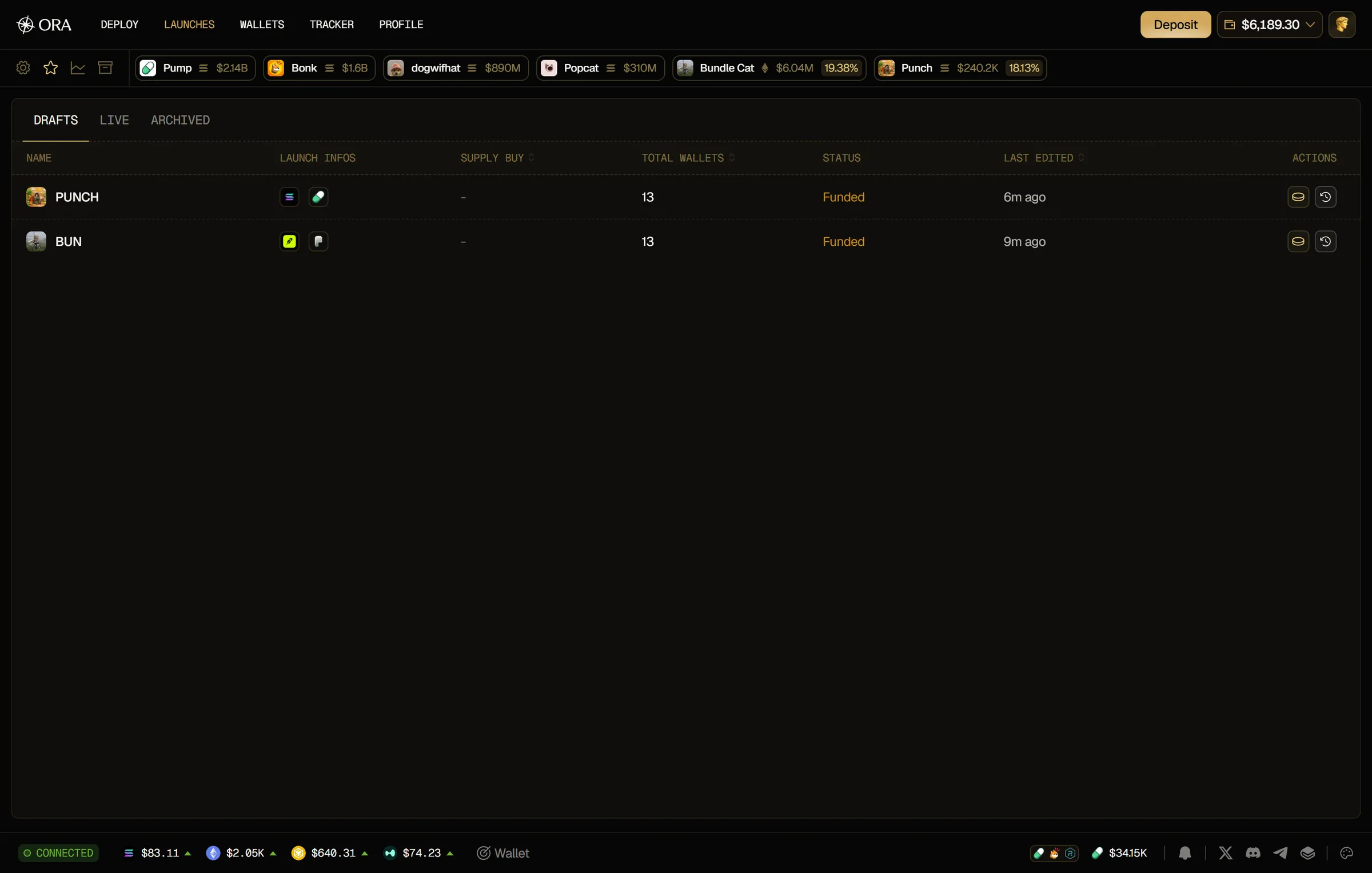
- Status: Draft for a draft. For a created token, the step it's at in orange, such as Preparing, Funding, Funded or Launching, or what went wrong, such as Funding failed, Swap failed or Launch failed.
- Last Edited: when you last changed the draft, or when the token was created.
- Actions: the red trash icon for a draft. For a created token, the coins icon and the clock icon (see below).
A dash means you haven't filled in that field yet. A created token always shows a dash under Supply Buy.
Resume a draft
Section titled “Resume a draft”Click a draft to reopen it in the deploy flow, with everything you filled in. Your changes keep saving to the same draft, so you never end up with copies.
Click a created token to open its token page, where it's funded and launched.
Discard a draft
Section titled “Discard a draft”Click the red trash icon (Discard draft) in the Actions column. The draft leaves the list and you get Draft discarded.
Recover funds
Section titled “Recover funds”When a created token is Preparing, Funded, Funding failed, Swap failed or Launch failed, click the coins icon (Recover Funds) in the Actions column. The funds left in its wallets go back to your Ora wallet and you get Funds recovered to your wallet.
The LIVE tab lists your launched tokens that you still hold some of. Click a token to open its page.
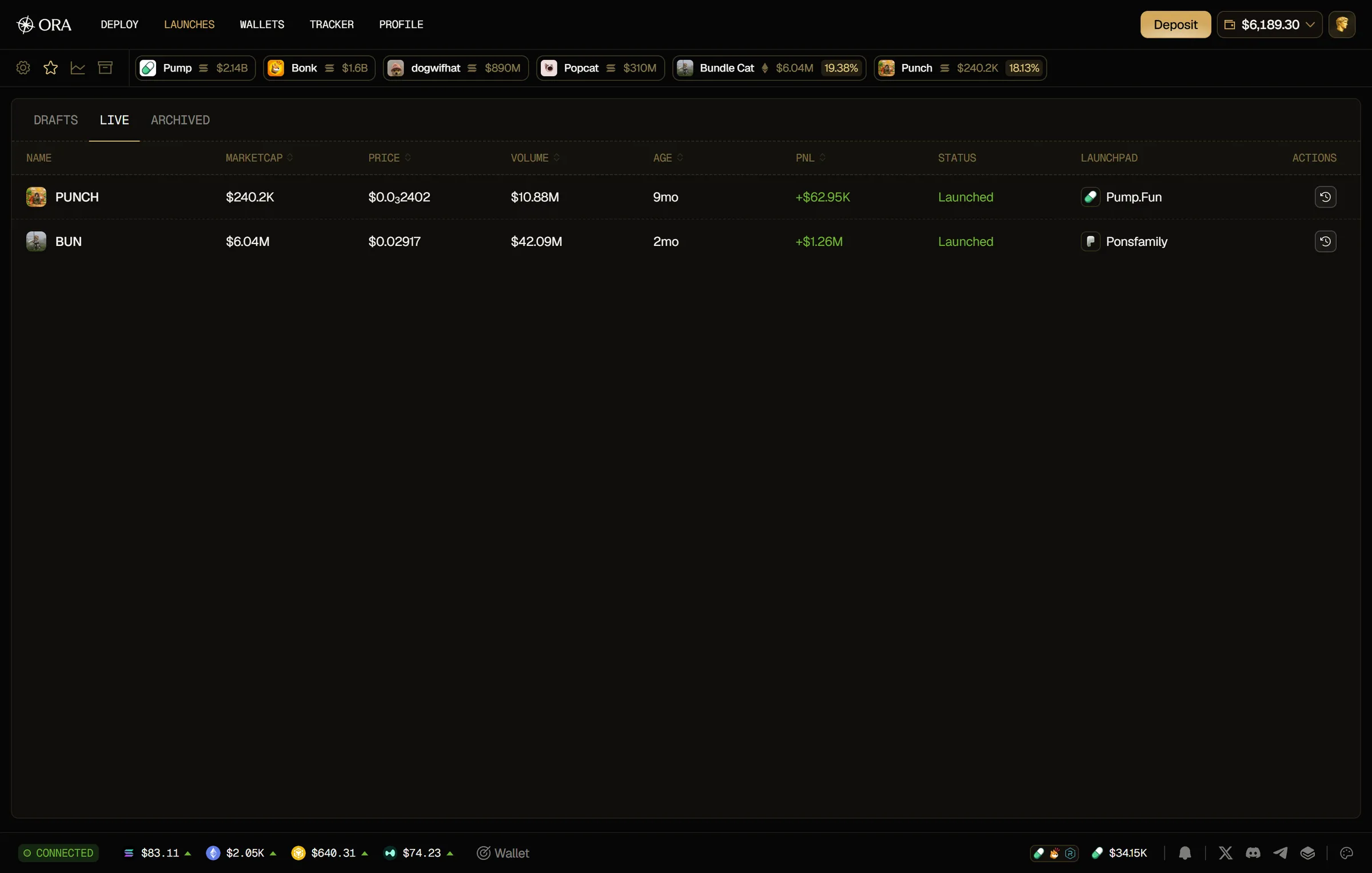
For each token, you see:
- Name: the token's logo and ticker.
- Marketcap, Price and Volume: its market data.
- Age: how long ago it was created.
- PNL: your profit and loss on it.
- Status: Launched, in green.
- Launchpad: where the token was launched.
- Actions: the clock icon, to archive the token.
A launch that has ended (you've sold all of it, or it's completed, exited or cancelled) leaves LIVE and no longer shows on this page, unless you archived it.
Archived
Section titled “Archived”Tokens can't be deleted. To put one aside, click the clock icon (Archive token) in its Actions column, in DRAFTS or LIVE. You get Token archived and the token moves to the ARCHIVED tab.
The ARCHIVED tab lists what you've archived, whatever its state, with the same columns as LIVE. A token that isn't launched yet shows the step it's at in orange, its estimated starting market cap under Marketcap (a dash when it can't be estimated), and a dash under Price, Volume and PNL. It keeps the coins icon for the same statuses as in DRAFTS.
To bring a token back, click its clock icon again (Unarchive token). You get Token unarchived and the token goes back to DRAFTS or LIVE, or leaves the page if its launch has ended.