Ora Overview
Account & Security
See your account details, link your sign-in methods, and keep your wallet and recovery key safe.
Your wallet
Section titled “Your wallet”Ora creates a self-custodial wallet for you at sign-up, powered by Turnkey, with a Solana address and a Robinhood address. Only you hold the keys: Ora cannot access, move or recover your funds.
To add funds or send them out, see Deposit & Withdraw.
Your recovery key
Section titled “Your recovery key”During onboarding, Ora shows you your recovery key: the private key of your Solana wallet. It's the only way to restore your wallet, and it also lets you import the wallet elsewhere.
Save it in the onboarding window before you click Start. You can show it again later with Export private key, in the Account and security window described below.
Account and security window
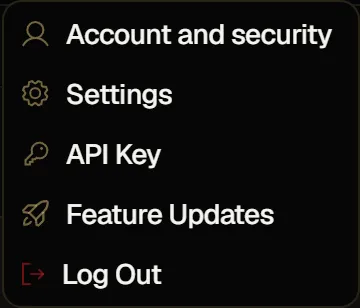
Section titled “Account and security window”Click your profile picture at the top right, then Account and security.
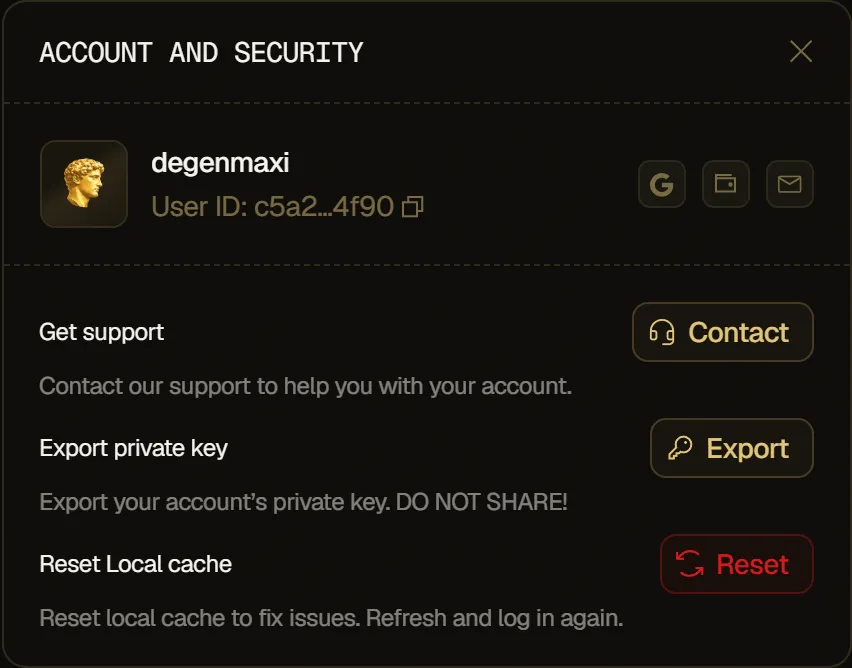
The top of the window shows your name and your User ID. Click the User ID to copy it: a notification confirms User ID copied to clipboard!
On the right, three icons show your sign-in methods. An icon is dimmed until that method is linked to your account.
- Google: click it to link a Google account. A Google window opens, then you get Google account linked!
- Wallet: lit when you sign in with an external wallet, such as Phantom. It's an indicator only.
- Email: click it to add an email, or to change it.
Add or change your email
Section titled “Add or change your email”-
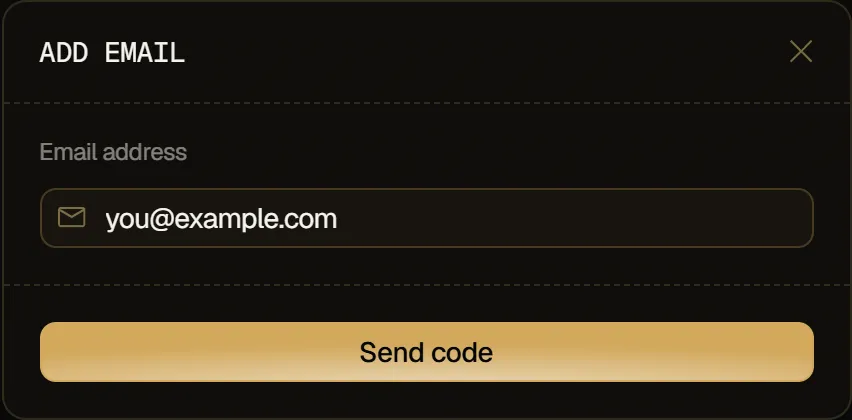
Click the email icon. The window is titled Add email, or Update email if you already have one.
-
Enter your address under Email address and click Send code.
-
Enter the code sent to that address and click Verify.
A notification confirms Email verified and updated! If the code doesn't arrive, Resend code becomes available after 60 seconds.
Getting help
Section titled “Getting help”For help with your account, reach the team on Ora's official Discord or Telegram.
Export private key
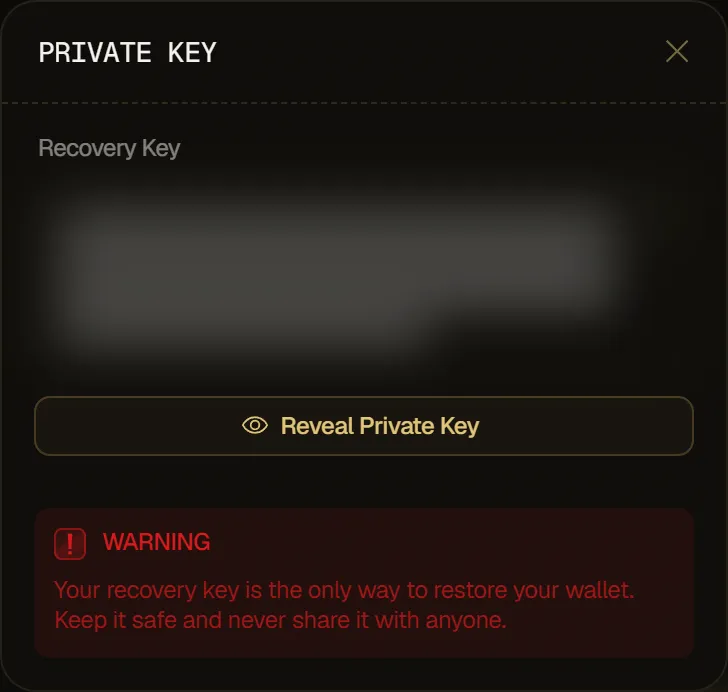
Section titled “Export private key”Click Export next to Export private key, then Reveal Private Key, to show your recovery key again. Once it shows, Copy to Clipboard copies it.
Reset local cache
Section titled “Reset local cache”If the app misbehaves, click Reset next to Reset Local cache. Ora logs you out, clears the data it stores in your browser, and reloads the page. Then log in again.
API key
Section titled “API key”In the same menu, API Key opens the window where you create the key that lets your own scripts use Ora. See Authentication.
Logging out
Section titled “Logging out”Click your profile picture at the top right, then Log Out. Logging out also clears the data Ora stores in your browser.
Staying safe
Section titled “Staying safe”- Deposit only the coin shown under Accepting, on the right network: each network in the Deposit window has its own address, so send USDC on Solana or USDG on Robinhood Chain over the network of the address you copied.
- Check addresses before you withdraw: on-chain transfers can't be reversed.
- Verify actions before confirming, especially destructive ones like Sell All, which can't be cancelled once confirmed.